Marketplace integration
Google Family Link
On Home Assistant 2026.10 or older? Open it in HACS
- Installs
- 430 sharing analytics
- GitHub stars
- 136
- Connection
- Uses the vendor's cloud
- Upkeep
- Updated in the last 6 months
- Version
- v2.4.5,
- Category
- Presence and location
- Kind
- Marketplace integration
- Brand
- Needs
- Needs the Marketplace (HACS on 2026.10 and older)
- Domain
familylink- Issues
- Report an issue
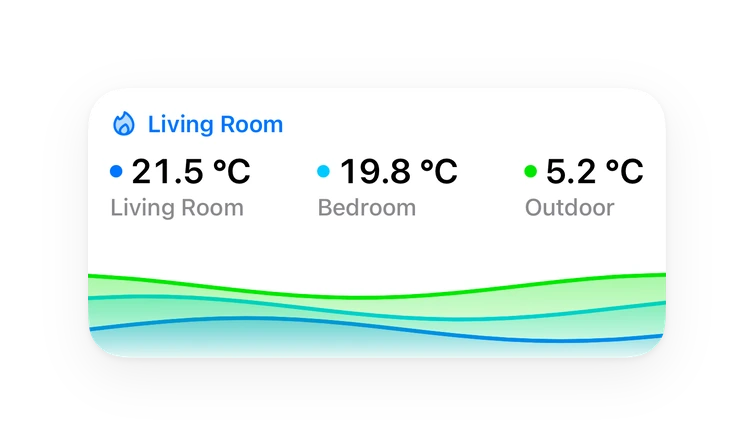
Shows in Vulpo Quick Toggle card, Button card, Select card, Chart card, Apple Watch, Control Center.
Independent directory, made by the developer of Vulpo. Not affiliated with Home Assistant or the Open Home Foundation.
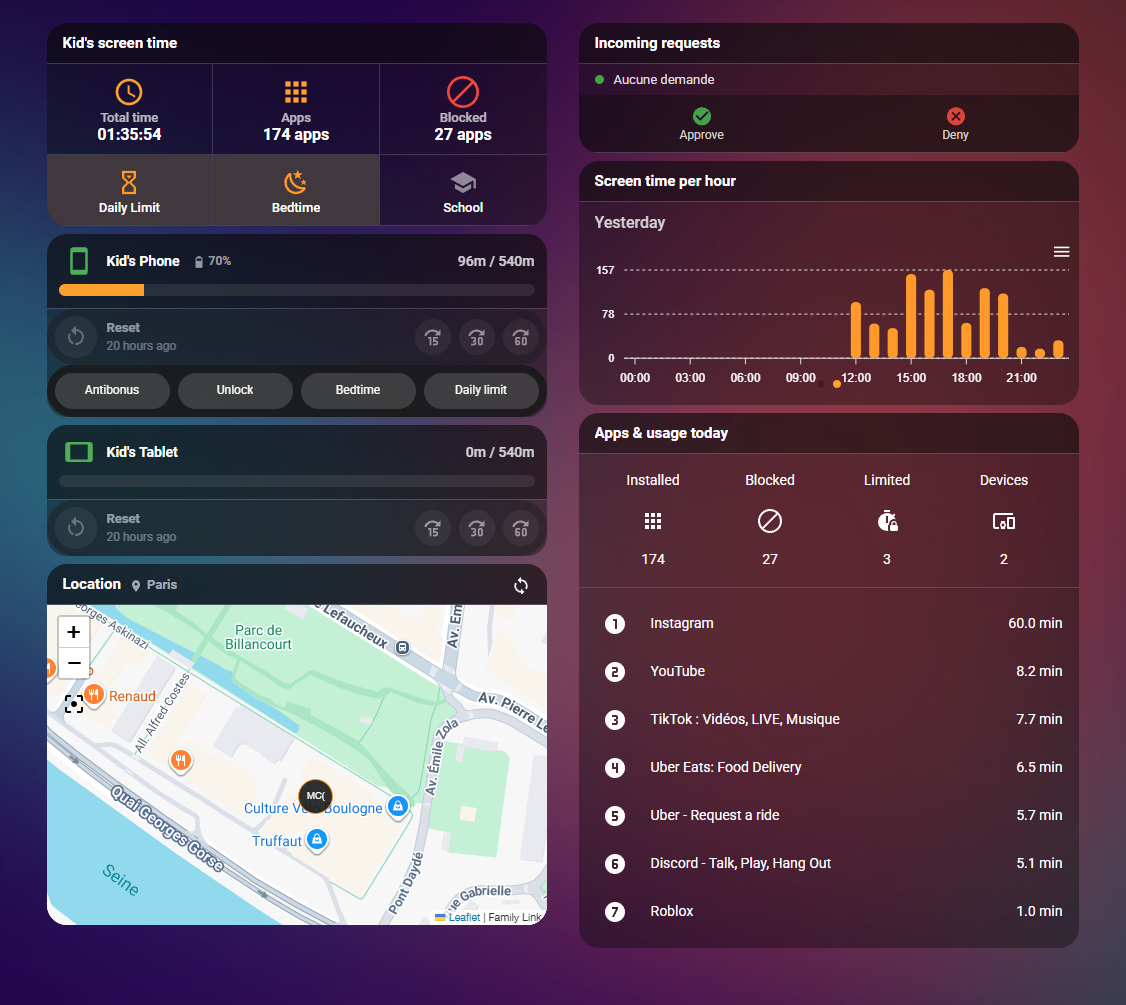
Screenshots From the README of noiwid/HAFamilyLink.
About
Control your children's Android devices through Google Family Link directly from Home Assistant. Monitor screen time, set daily limits, manage bedtime and school schedules, and grant bonus time...
Description from noiwid/HAFamilyLink

Shows in Vulpo
Quick Toggle card, Button card, Select card, Chart card, Apple Watch, Control Center.Supports
- Uses the vendor's cloudNeeds an internet connection and an account with the vendor.
- From the MarketplaceInstalled through the Marketplace, formerly HACS.
- Actively maintainedIts author released or pushed a change in the last six months.
Provides
- Switches
- Sensors
- Presence
Setting it up
Install it from the Marketplace and restart Home Assistant, then add it under Settings, Devices and services.
Authentication Server URL
- Authentication Server URL
- API Key
Configure Family Link
- Integration Name
- Update Interval (seconds)
- Request Timeout (seconds)
- Enable GPS location trackingWhen enabled, each location poll may send a notification to the child's device. Disabled by default for privacy.
- Strict mode (Home Assistant enforces the limits)Strict mode closes a gap on Google's side that many children know how to use: from the Family Link app or the Google interface, a supervised child can give themselves a time bonus, unlock a device that has no time left, or switch bedtime and the daily limit off. With strict mode on, Home Assistant becomes the single point of control: after every refresh it reverts those changes and overrides the Family Link settings with what you set from Home Assistant. WARNING: while it is on, manage Family Link from Home Assistant only, changes made in the Family Link app are undone. Turn the child's Strict Mode switch off to hand control back to Google. The child's Strict Mode switch mirrors this option: changing one updates the other.
- Strict mode rulesWhat strict mode enforces. Nothing is switched on by force: the state chosen in Home Assistant is the reference. Details in the README.
- Device lock keeps the always allowed apps reachableWhen on, a device locked from Home Assistant still lets the child open the apps marked "always allowed" in Family Link, through an "Available apps" button on the lock screen (what the Family Link app does when its lock screen setting is on). Switch off for a plain lock: emergency calls only.
Update Authentication Server
- Authentication Server URL
- API Key
- Clear API key
After setup
- Update Interval (seconds)How often to fetch data from Google (30-3600 seconds)
- Request Timeout (seconds)
- Enable GPS location trackingWhen enabled, each location poll may send a notification to the child's device
- Strict mode (Home Assistant enforces the limits)Strict mode closes a gap on Google's side that many children know how to use: from the Family Link app or the Google interface, a supervised child can give themselves a time bonus, unlock a device that has no time left, or switch bedtime and the daily limit off. With strict mode on, Home Assistant becomes the single point of control: after every refresh it reverts those changes and overrides the Family Link settings with what you set from Home Assistant. WARNING: while it is on, manage Family Link from Home Assistant only, changes made in the Family Link app are undone. Turn the child's Strict Mode switch off to hand control back to Google. The child's Strict Mode switch mirrors this option: changing one updates the other.
- Strict mode rulesWhat strict mode enforces. Nothing is switched on by force: the state chosen in Home Assistant is the reference. Details in the README.
- Device lock keeps the always allowed apps reachableWhen on, a device locked from Home Assistant still lets the child open the apps marked "always allowed" in Family Link, through an "Available apps" button on the lock screen (what the Family Link app does when its lock screen setting is on). Switch off for a plain lock: emergency calls only.
- Users allowed to control Family LinkLeave empty to let every Home Assistant user use the Family Link buttons, switches and settings (the default). Once you tick users here, only they and the administrators can: a child's non-administrator account is refused on every Family Link button, switch, limit, time and select, and on the familylink.* actions. Automations and scripts started by Home Assistant itself are not affected. Give the child a non-administrator account: an administrator can change this option.
Texts from the code of noiwid/HAFamilyLink.
Entities
- PresenceLocation
- SensorsDaily Screen Time, Screen Time (formatted), Installed Apps, Blocked Apps, Apps with Time Limits, Device Count, Child Info
- SwitchesDevice Lock
Troubleshooting
- DiagnosticsDownloads a diagnostics file to attach to a bug report.
From the README
Monitor and control Google Family Link from Home Assistant: screen time, device lock, bedtime and school time schedules, daily limits, communication restrictions, app blocking, time bonuses, and optional GPS location. Multiple children and multiple devices are supported out of the box.
Disclaimer. This integration uses unofficial, reverse-engineered Google Family Link endpoints. There is no official API: Google can change or break things at any time, and using this integration may violate Google's Terms of Service and could result in account suspension. Use at your own risk. This project is not affiliated with, endorsed by, or connected to Google LLC.
Information
- Installs
- 430 sharing analytics
- GitHub stars
- 136
- Connection
- Uses the vendor's cloud
- Upkeep
- Updated in the last 6 months
- Version
- v2.4.5,
- Category
- Presence and location
- Kind
- Marketplace integration
- Brand
- Needs
- Needs the Marketplace (HACS on 2026.10 and older)
- Domain
familylink- Issues
- Report an issue