
Updated
Intercom
New in Vulpo 1.4Home Assistant Intercom on iPhone, iPad and Mac
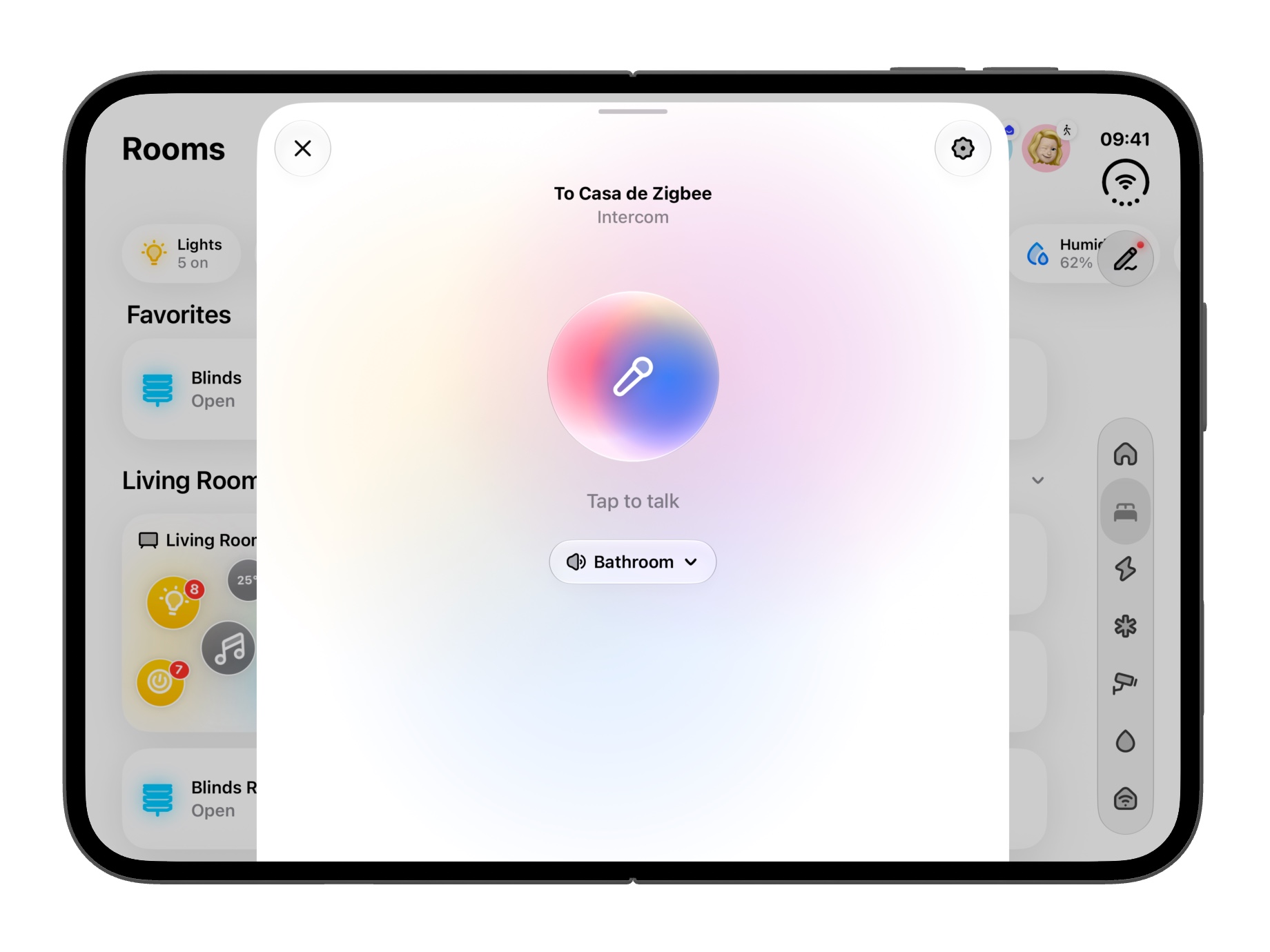
Vulpo Intercom turns your Home Assistant speakers into an intercom. Tap the orb, speak for up to 30 seconds, and the message plays on the speakers you pick after a short chime, from home or away. Speakers that support announcements lower the music and bring it back. Live captions are made on the device. Part of Vulpo Pro.
Intercom.
Speak for up to 30 seconds and the message plays on the Home Assistant speakers you pick, even when you're away.
On iPhone Duo.
Open it and Intercom rises over the dashboard, the orb ready for a message to the Bathroom.
How it works
Intercom records your voice on the device, adds a short chime and sends the message to your own Home Assistant, which plays it on every speaker you selected at once. Home Assistant serves the audio to the speakers itself, so a message sent from outside the home plays the same way.
- Record Tap the orb and speak for up to 30 seconds, then tap again to send
- Captions Your words appear as you speak, transcribed on the device in the language you pick
- Delivery A report shows which speakers received the message, with Retry for the rest
- Sound Pick one of five chimes and set a volume for messages
- Speakers Choose which speakers the picker lists, synced across your devices
- Where In the profile menu, the Media glance, and the sidebar on iPad and Mac
- Tap the orb and speak for up to 30 seconds, then tap again to send.
- Vulpo adds a chime and sends the message to your own Home Assistant.
- Home Assistant plays it on every speaker you picked, all at once.
Speakers
Intercom lists the Home Assistant media players that can play an audio message, such as Sonos speakers, HomePod and Music Assistant players. Speakers that support announcements lower the music for the message and bring it back afterwards.
- Lowers music Speakers that support announcements lower the music, play your message and pick up where they left off.
- Stops music Other speakers stop what's playing for the message.
Privacy
Messages go from your device to your own Home Assistant and on to your speakers; no Vulpo server is involved. The recording on the device is deleted once the message has been sent, and Vulpo removes the message from Home Assistant about a minute after it plays. Captions are made on the device and are not stored.
Requirements
Intercom needs Vulpo 1.4 or later on iPhone, iPad or Mac and is part of Vulpo Pro. Home Assistant lets only administrators upload media, so Intercom needs a Home Assistant administrator account and at least one media player.
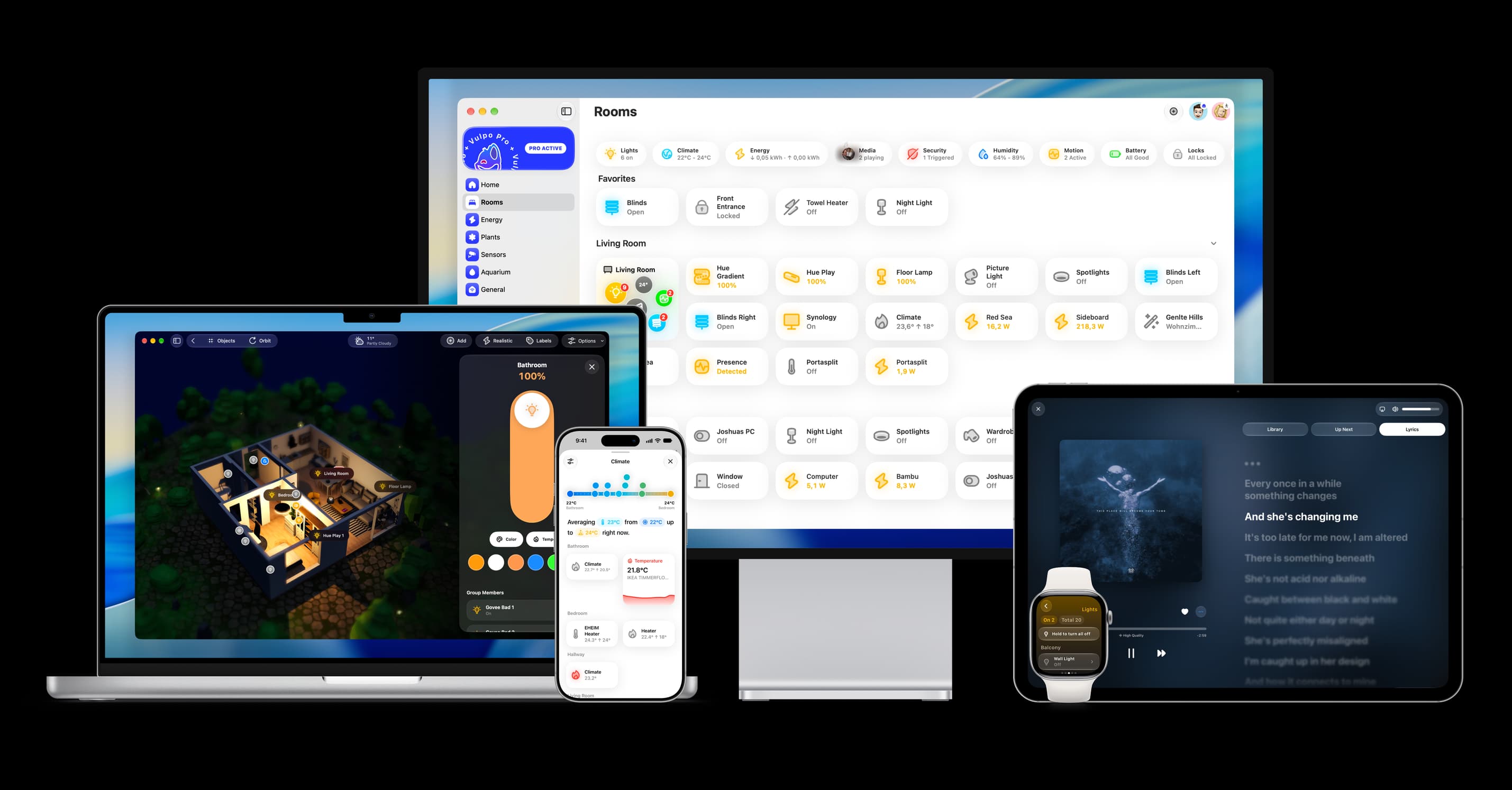
- Vulpo 1.4 on iPhone, iPad or Mac
- Vulpo Pro
- Admin account in Home Assistant
- A speaker that can play audio
Questions
Does Vulpo Intercom need an add-on or custom integration?
No. Intercom uses the local media folder built into Home Assistant and the media players you already have, so there is nothing to install on the server. The account Vulpo signs in with must be an administrator, because Home Assistant allows only administrators to upload media.
Can I send an Intercom message when I am away from home?
Yes, as long as Vulpo can reach Home Assistant from outside, through Nabu Casa, your own domain or a VPN. Vulpo uploads the message to Home Assistant, and Home Assistant serves the audio to the speakers on your home network, so it plays the same way as a message sent from the couch.