
On Home Assistant 2026.10 or older? Open it in HACS
- Installs
- 50 sharing analytics
- GitHub stars
- 20
- Connection
- Works locally
- Upkeep
- Updated in the last 6 months
- Version
- v2.9.0,
- Category
- Energy, Solar and batteries
- Kind
- Marketplace integration
- Brand
- Tesla
- Needs
- Needs the Marketplace (HACS on 2026.10 and older)
- Domain
tesla_tedapi- Issues
- Report an issue
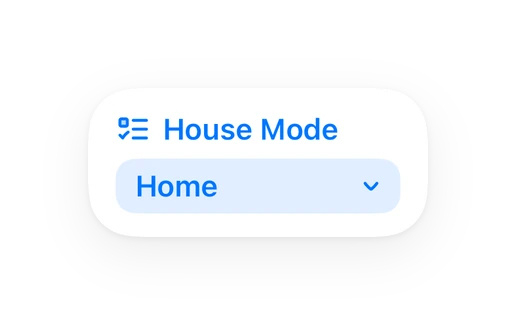
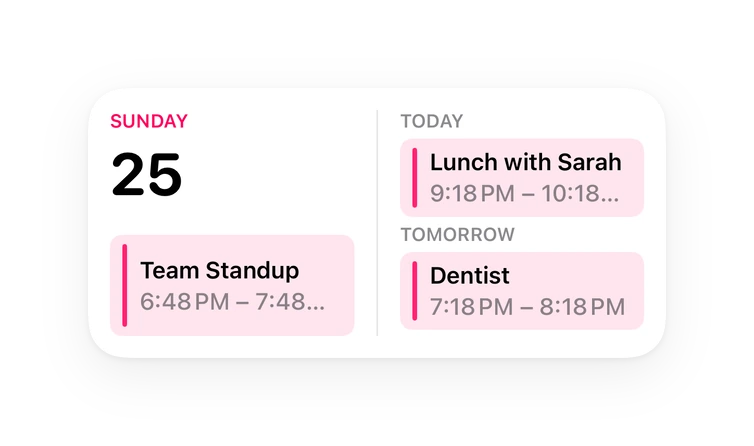
Shows in Vulpo Quick Toggle card, Button card, Select card, Calendar card, Apple Watch, Control Center.


Scan with your iPhone
DownloadIndependent directory, made by the developer of Vulpo. Not affiliated with Home Assistant or the Open Home Foundation.
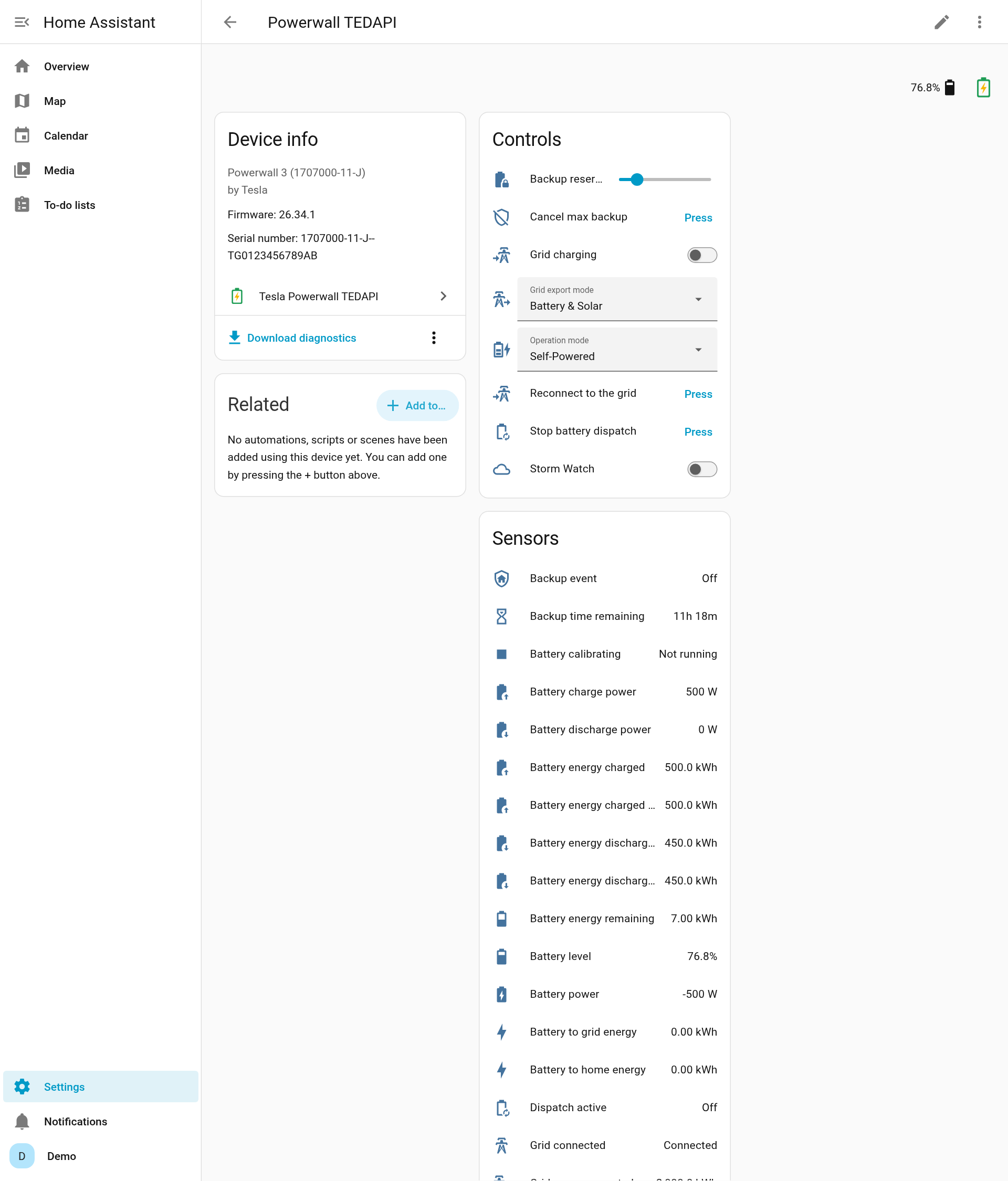
Screenshots From the README of cnapagoda/ha-powerwall-tedapi.
About
Home Assistant integration for local monitoring and control of a Tesla Powerwall through the gateway’s TEDAPI.
Description from cnapagoda/ha-powerwall-tedapi

Shows in Vulpo
Quick Toggle card, Button card, Select card, Calendar card, Apple Watch, Control Center.Installs over time
#1,686 of 1,698 Marketplace integrations. Installs sharing analytics.
Supports
- Works locallyTalks to your devices on your own network. No vendor cloud in between.
- Found by itselfHome Assistant spots it on the network and offers to add it.
- Sign in with the vendorConnects through the vendor's own sign-in page.
- From the MarketplaceInstalled through the Marketplace, formerly HACS.
- Actively maintainedIts author released or pushed a change in the last six months.
Provides
- Switches
- Sensors
- Calendars
Setting it up
Install it from the Marketplace and restart Home Assistant, then add it under Settings, Devices and services.
Sign in to Tesla
- Refresh token, or callback addressThe full tesla://auth/callback?code=… address from the browser sign-in, or a refresh token from an app sign-in (a long text, usually starting with eyJ). Each code works once and expires within minutes.
Powerwalls found
- Gateway
Gateway
- Gateway addressThe gateway's address on your home network, for example 192.168.1.50. Your router lists it as teslapw_….
- Gateway passwordThe whole password on the QR sticker inside the Powerwall's cover (Powerwall 3: behind the front glass, lower left). Letters are upper case. Most gateways also accept just its last 5 characters; a Backup Gateway 1 needs the whole password.
- Wi-Fi fallback addressOptional. Enter the Powerwall's Wi-Fi hotspot address (usually 192.168.91.1) only if Home Assistant is also connected to the Powerwall's own TeslaPW_… Wi-Fi; otherwise leave it empty. It's used over the same signed connection when the home-network address stops answering, and to read follower Powerwall 3s, which the signed connection can't reach over the home network.
- Customer password (optional)Only if the gateway's customer login password was changed and no longer matches the sticker (for example by an installer, or on an older firmware's web page). Used as it is for that login; leave empty to derive it from the gateway password.
Upload the key
- Private key (.pem)The private key file (.pem, starts with -----BEGIN PRIVATE KEY----- or -----BEGIN RSA PRIVATE KEY-----) whose public key is registered and VERIFIED on this Powerwall. Not the public key.
- Link a Tesla account as a backup for settingsAlso sign in to a Tesla account, so settings can still be changed through the Tesla cloud when the local connection is down.
Connect over the Powerwall's Wi-Fi
- Hotspot addressUsually 192.168.91.1, the address of the Powerwall's own Wi-Fi network (TeslaPW_…).
- Link a Tesla account to change settingsWithout a Tesla account, this connection can only read. Sign in to change settings through the Tesla cloud.
Choose the Powerwall
- Energy siteThe energy site (Tesla app name) with this Powerwall. Choosing another site's Powerwall stops the setup.
Could not connect
- Next
Gateway password
- Gateway passwordThe whole password on the QR sticker inside the Powerwall's cover (Powerwall 3: behind the front glass, lower left). Letters are upper case. Most gateways also accept just its last 5 characters; a Backup Gateway 1 needs the whole password.
- Customer password (optional)Only if the gateway's customer login password was changed and no longer matches the sticker (for example by an installer, or on an older firmware's web page). Used as it is for that login; leave empty to derive it from the gateway password.
After setup
- Polling interval
- Fast polling interval for powerHow often power, battery level and grid status are read. 0 = off: they are read with everything else, at the polling interval. 5 to 60 s, and only used when shorter than the polling interval. Shorter gives smoother graphs and quicker dispatch limits, but more load on the gateway and a bigger database. Changing it reloads the integration.
- Restore settings when the Powerwall drops themThe Powerwall sometimes loses its grid export rule and its grid charging setting from its own settings (seen hourly on a Powerwall 3); grid charging then turns on. When on, the setting you chose is written back within a minute or two (signed connection only).
- One device per PowerwallEach Powerwall and Expansion Pack gets a device of its own, linked to this one, with its battery, fan, solar input and inverter temperature sensors. Useful with several Powerwalls. Entity IDs and history stay; changing it reloads the integration.
- Alert events for status alerts tooStatus alerts such as "Export limited" describe normal operation and some come and go every few minutes; by default only notices, warnings and faults create Alert events.
- Problem delayHow long a warning or fault must last before the Problem sensor turns on and a repair is raised.
- Discharges stop at the backup reserveA discharge started without min_soc stops when the battery reaches the backup reserve.
- Largest dispatch powerDispatch calls above this power are refused (at most 30,000 W). Set it to what your system can deliver: one Powerwall 3 refuses more than 10,000 W. Raising it is your responsibility: only set what your wiring, breakers, gateway and grid connection allow.
- Battery level may be this oldA charge or discharge is only started or renewed on a battery level at most this old (1–5 minutes, default 2; never less than 2½ polling intervals). During a dispatch the Powerwall ignores its backup reserve, and its limits are checked against this level: each extra minute lets a 10 kW dispatch run about 0.17 kWh further past a limit. Raise it only if a slow connection keeps pausing dispatches.
- Turn on grid charging for a chargeA charge dispatch (also charge_to) turns on Grid charging if it's off, so it can draw from the grid, and turns it off again when the dispatch ends, unless it was changed in the meantime. Charging from the grid may cost money on your tariff.
- Tesla tariff (cloud)Read the tariff Tesla uses for Time-Based Control from the cloud backup (sensors, calendars and get/set tariff actions). Cloud only.
- Cloud readings while the gateway is unreachableWhile the gateway can't be reached, show power, battery level and battery energy (remaining and full capacity) from the cloud backup instead (they carry the attribute source: cloud and can be a few minutes old). Energy counters and everything else stay unavailable. Off: all readings are unavailable until the gateway answers.
- Gateway configuration in diagnosticsAdd the gateway's own configuration to diagnostics downloads, with serial numbers, location, names and credentials removed. Useful for bug reports.
- Gateway configuration in diagnosticsAdd the gateway's own configuration to diagnostics downloads, with serial numbers, location, names and credentials removed. Useful for bug reports.
- Publish to MQTT
- Base topicMessages go to base/power, /battery, /energy, /settings, /status and /event/…. Letters, digits, _ and -, separated by /. Each Powerwall needs its own.
- Accept setting commandsOperation mode, backup reserve, grid charging and grid export, from base/cmd/…, with the same checks as the entities. Needs publishing on. Anyone who can publish to your broker can use them: restrict it with the broker's access rules, or set a secret.
- Accept battery control commandsBattery dispatch, charge to and discharge to a level, resume, and max backup, with every limit of the actions. Only with setting commands on. Read Safety first.
- Command secret (optional)When set, a command runs only if its token field matches.
- Cloud backupOnly the backups that are set up are offered. Fleet API calls count on your Tesla developer account or Teslemetry plan.
- Refresh token, or callback addressThe full tesla://auth/callback?code=… address from the browser sign-in, or a refresh token from an app sign-in (a long text, usually starting with eyJ). Each code works once and expires within minutes.
- Energy siteThe energy site (Tesla app name) with this Powerwall.
- Cloud backupThe backup to stop using.
Texts from the code of cnapagoda/ha-powerwall-tedapi.
Entities
- Binary sensorsGrid connected, Dispatch active, Problem, Battery calibrating, Backup event, Storm Watch active, Grid services active, Wi-Fi internet, Ethernet internet, Cellular internet
- ButtonsStop battery dispatch, Cancel max backup, Reconnect to the grid
- CalendarsBuy tariff, Sell tariff
- EventsAlert
- NumbersBackup reserve, Off-grid vehicle charging reserve
- SelectsOperation mode, Grid export mode
- SensorsSolar power, Battery power, Grid power, Home power, Grid import power, Grid export power, Battery discharge power, Battery charge power, Battery level, Battery state of energy, Grid status, Grid frequency, and 64 more
- SwitchesGrid charging, Storm Watch, On-grid solar curtailment (experimental)
Actions
- Dispatch battery powerRun the battery at a fixed power for a set time over the signed local connection. Positive watts discharge, negative watts charge, 0 holds the battery idle. Overrides the export setting; a discharge stops at the backup reserve unless min_soc is given (option). The integration renews the command every 30 seconds in short steps, so the Powerwall returns to normal within 2 minutes if Home Assistant stops. A new call replaces a running dispatch. Use at your own risk: dispatching the battery may affect your Powerwall warranty, which may cover unlimited cycles only for self-consumption, time-based control and backup.
- Powerwall
- Power
- Duration
- Stop discharging at
- Stop charging at
- Freeze batteryRun the battery one way only, over the signed local connection, at the power the readings call for. charge_only charges from the solar the home doesn't use and never discharges; discharge_only covers what the home uses beyond solar and never charges, so surplus solar is exported. The power follows each reading, so a little may come from or go to the grid in between; without a fresh reading the battery is held. Made for Predbat's freeze charging and freeze exporting. It never turns Grid charging on; otherwise it works like a battery dispatch and may affect your Powerwall warranty in the same way.
- Powerwall
- Direction
- Duration
- Largest power
- Stop discharging at
- Stop charging at
- Charge to a battery levelCharge the battery at a set power over the signed local connection until it reaches the target level, or for at most the time limit. Charges from solar and, if grid charging is allowed, from the grid. Ends with event reason target_reached or completed. Use at your own risk: dispatching the battery may affect your Powerwall warranty, which may cover unlimited cycles only for self-consumption, time-based control and backup.
- Powerwall
- Target level
- Power
- Time limit
- Discharge to a battery levelDischarge the battery at a set power over the signed local connection until it falls to the target level, or for at most the time limit. Overrides the export setting, so the battery may export to the grid. Ends with event reason target_reached or completed. Use at your own risk: dispatching the battery may affect your Powerwall warranty, which may cover unlimited cycles only for self-consumption, time-based control and backup.
- Powerwall
- Target level
- Power
- Time limit
- Resume battery operationEnd a dispatch now and hand the battery back to the Powerwall's normal mode.
- Powerwall
- Start max backupStart a backup event over the signed local connection: the Powerwall charges to full (from the grid too) and keeps the battery full for the duration, as Storm Watch does. A new call replaces a running max backup.
- Powerwall
- Duration
- Cancel max backupEnd a max backup started here or in the Tesla app. Storm Watch events scheduled by Tesla are not affected.
- Powerwall
- Go off-gridDisconnect the house from the grid over the signed local connection, like *Go off-grid* in the Tesla app. The house then runs on the battery and solar; solar stops for about 30 seconds while the grid contactor switches. The action waits up to 90 seconds until the gateway reports it off-grid. The integration reconnects at the end of the duration, or when the battery falls to the reconnect level, also after a restart.
- Powerwall
- Confirm
- Duration
- Reconnect at
- For curtailment
- Daily limit
- Reconnect to the gridReconnect the house to the grid over the signed local connection, also after *Go off-grid* in the Tesla app. The action waits up to 90 seconds until the Powerwall starts syncing to the grid.
- Powerwall
- Only a curtailment run
- Get Tesla tariffRead the tariff Tesla uses for Time-Based Control from the cloud backup, as raw JSON.
- Powerwall
- Set Tesla tariffSend time-of-use settings to Tesla through the cloud backup. They change how Time-Based Control charges and discharges.
- Powerwall
- Time-of-use settings
- Dry run
- Read back
- Only if changed
- Import battery historyOne-off: copy the battery charged and discharged history of the energy sensors you pick (for example from Tesla Fleet or Teslemetry) into this Powerwall's battery energy statistics, for the time before their own history starts. Take a Home Assistant backup first: the import is hard to undo.
- Powerwall
- Dry run
- Charged source
- Discharged source
- Into the net sensors
- Set site limitSet or remove the site's grid import or export limit, over the signed local connection. An installer may have set a limit to meet your grid connection agreement (for example a network export limit): don't raise or remove one unless you're allowed to.
- Powerwall
- Direction
- Limit
- Confirm
- Delay battery calibrationPostpone the Powerwall's next battery calibration, over the signed local connection. The gateway allows a limited number of delays, and each one may use one. Some firmware doesn't support it.
- Powerwall
- Delay
- Remove registered keyRemove a key registered with the gateway, over the signed local connection. That app or device can then no longer send it commands. The key this integration uses can't be removed.
- Powerwall
- Fingerprint
- Confirm
Troubleshooting
- DiagnosticsDownloads a diagnostics file to attach to a bug report.
- Repair noticesNotices it can show in Settings, Repairs:Sign in to Tesla again, Fleet API cloud backup is not working, Fleet API cloud backup can't change settings, Sign in to Tesla Fleet or Teslemetry, The Powerwall couldn't reconnect to the grid, Tesla's cloud capped the backup reserve, A cloud change did not apply as set, Signed local access stopped after a firmware update, Tesla stored a different tariff, A Powerwall 3 is missing from the readings, The Wi-Fi fallback address can't be reached, MQTT publishing can't start
From the README
Download counts are from the 2.8.3 release.
Local monitoring and control of a Tesla Powerwall from Home Assistant, through the gateway's own interface (TEDAPI). Built on pypowerwall and aiopytedapi. Works with the Powerwall 3, and with Powerwall 2 / Powerwall+ where the firmware supports it.
Information
- Installs
- 50 sharing analytics
- GitHub stars
- 20
- Connection
- Works locally
- Upkeep
- Updated in the last 6 months
- Version
- v2.9.0,
- Category
- Energy, Solar and batteries
- Kind
- Marketplace integration
- Brand
- Tesla
- Needs
- Needs the Marketplace (HACS on 2026.10 and older)
- Domain
tesla_tedapi- Issues
- Report an issue
More from Tesla



You might also like












Try it with your own Home Assistant.
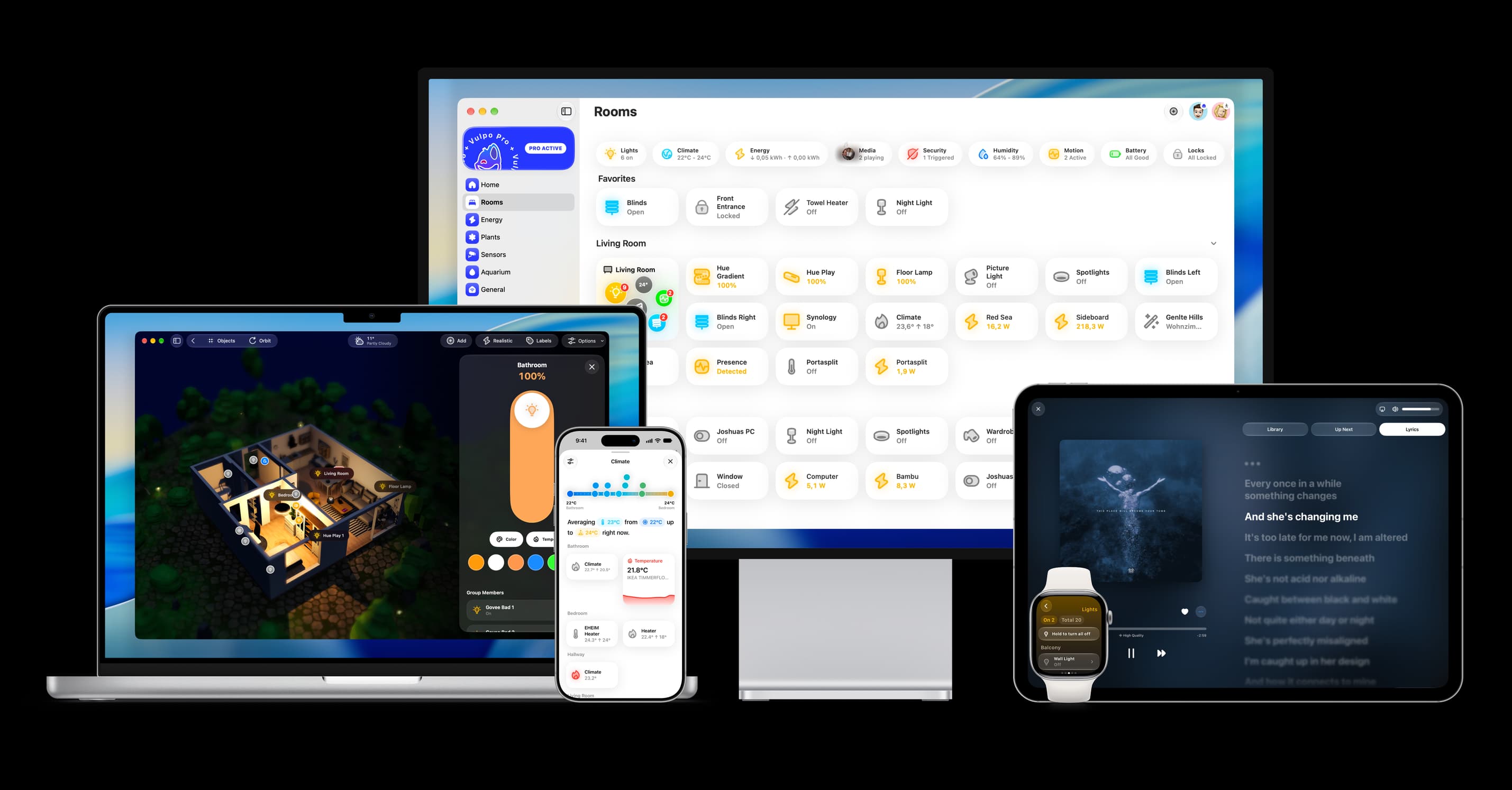
- Free to download
- iPhone, iPad, Mac and Apple Watch
- 40+ native card types
- Connects to your own Home Assistant