Ookla Speedtest
On Home Assistant 2026.11 or newer? Open it in the Marketplace
- Installs
- 1.6k sharing analytics
- GitHub stars
- 59
- Connection
- Works locally
- Upkeep
- Updated in the last 6 months
- Version
- v3.1.5,
- Category
- Computers and network, Monitoring
- Kind
- Marketplace integration
- Brand
- Speedtest
- Needs
- Needs the Marketplace (HACS on 2026.10 and older)
- Domain
ookla_speedtest- Issues
- Report an issue
Independent directory, made by the developer of Vulpo. Not affiliated with Home Assistant or the Open Home Foundation.
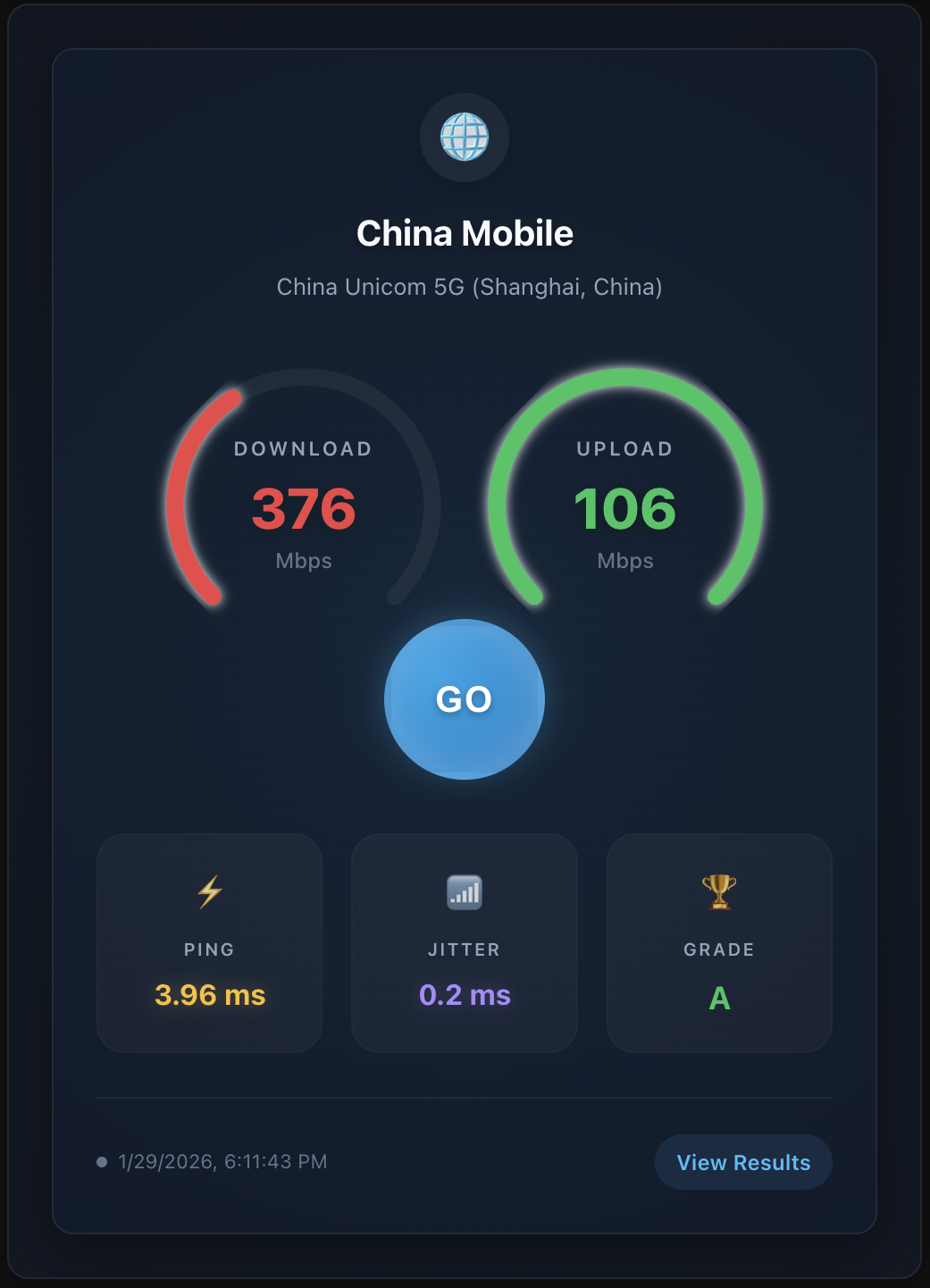
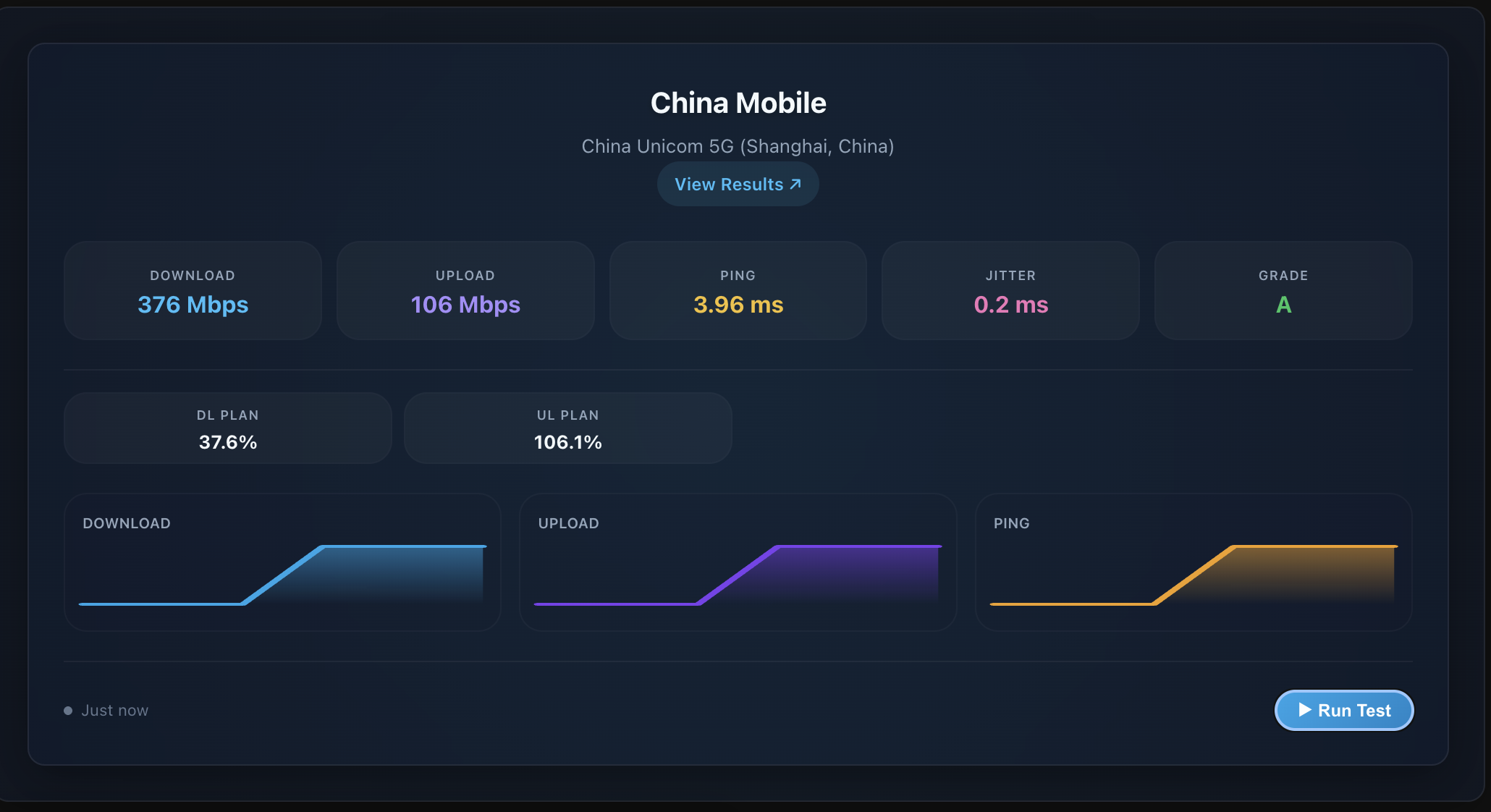
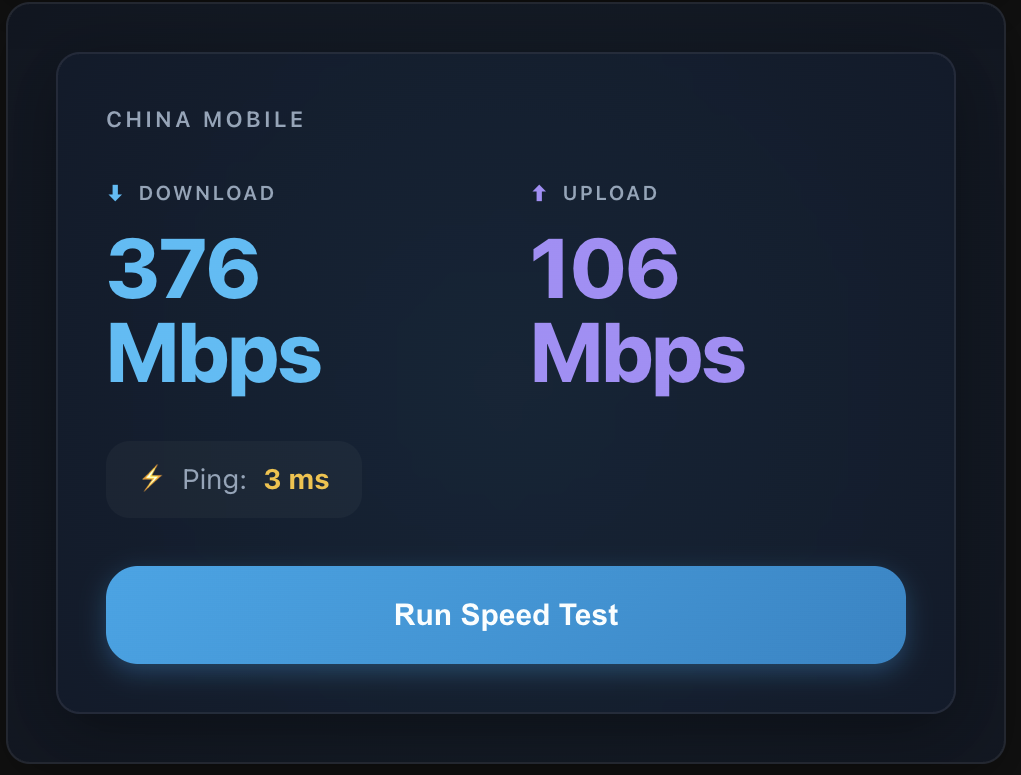
Screenshots From the README of soulripper13/hass-speedtest-ookla.
About
Ookla Speedtest measures internet speed from Home Assistant using the Ookla speedtest command line tool. It runs locally and adds sensors for ping, download, upload, jitter, a bufferbloat grade, the detected provider, the test server, and the time of the last test. Optional sensors report plan compliance against the rated ISP speeds, plus extended latency statistics. Tests can use the closest server, one of the nearest servers, or a manual server ID, with an option to fall back to the closest server when the chosen one is unavailable. They run on a configurable interval with an optional start time, or only on demand through a service, and can be bound to a network interface or source address. Setup and later changes are made in the UI, and the integration comes through the Marketplace.
Automatic summary of the README and code of soulripper13/hass-speedtest-ookla. Something wrong, or are you the maintainer and want your own text here? Get in touch
Supports
Works locally Talks to your devices on your own network. No vendor cloud in between.
From the Marketplace Installed through the Marketplace, formerly HACS.
Actively maintained Its author released or pushed a change in the last six months.
Provides
- Sensors
Setting it up
Install it from the Marketplace and restart Home Assistant, then add it under Settings, Devices and services.
Configure Ookla Speedtest
- Speedtest ServerChoose which server to test against. 'Closest Server' automatically selects the nearest server. Servers are sorted by distance.
- Manual Server IDEnter a specific server ID number (only used if 'Manual Server ID' is selected above). Find server IDs at speedtest.net/servers.
- Manual ModeWhen enabled, speed tests will only run when manually triggered via the 'run_speedtest' service. When disabled, tests run automatically based on the scan interval.
- Source InterfaceOptional: Bind tests to a specific network interface name, such as eth0 or wlan0.
- Source IP AddressOptional: Bind tests to a specific local source IP address, such as 192.168.1.10.
- Scan IntervalHow often to automatically run speed tests. Default is 24 hours. Only applies when Manual Mode is disabled. Lower values will use more bandwidth.
- Start TimeOptional: Time to align the schedule (e.g., '14:00'). If set, the first test runs at this time, then every 'Scan Interval'. Useful for 'every hour on the hour' (Set 00:00 and interval 1 hour).
- ISP Download Speed (Mbit/s)Optional: Your rated download speed from your ISP. Used to calculate 'Plan Compliance %'.
- ISP Upload Speed (Mbit/s)Optional: Your rated upload speed from your ISP. Used to calculate 'Plan Compliance %'.
- Enable Extended Latency SensorsIf enabled, creates additional sensors for detailed latency stats (min/max/iqm) for Ping, Download, and Upload.
- Enable Stability & Compliance SensorsIf enabled, creates sensors for Plan Compliance % (requires ISP speeds above) and Jitter stats.
- Fall Back to Closest ServerWhen enabled with a specific server, each test tries that server first. If Ookla reports it unavailable, the test retries using the closest server.
- Install & Register Lovelace CardsWhen enabled, bundled dashboard card files are automatically copied to /config/www/ookla_speedtest and registered as Lovelace dashboard resources. When disabled, the card files and resources are removed.
After setup
- Speedtest ServerChoose which server to test against. 'Closest Server' automatically selects the nearest server. Servers are sorted by distance.
- Manual Server IDEnter a specific server ID number (only used if 'Manual Server ID' is selected above). Find server IDs at speedtest.net/servers.
- Manual ModeWhen enabled, speed tests will only run when manually triggered via the 'run_speedtest' service. When disabled, tests run automatically based on the scan interval.
- Source InterfaceOptional: Bind tests to a specific network interface name, such as eth0 or wlan0.
- Source IP AddressOptional: Bind tests to a specific local source IP address, such as 192.168.1.10.
- Scan IntervalHow often to automatically run speed tests. Default is 24 hours. Only applies when Manual Mode is disabled. Lower values will use more bandwidth.
- Start TimeOptional: Time to align the schedule (e.g., '14:00'). If set, the first test runs at this time, then every 'Scan Interval'. Useful for 'every hour on the hour' (Set 00:00 and interval 1 hour).
- ISP Download Speed (Mbit/s)Optional: Your rated download speed from your ISP. Used to calculate 'Plan Compliance %'.
- ISP Upload Speed (Mbit/s)Optional: Your rated upload speed from your ISP. Used to calculate 'Plan Compliance %'.
- Enable Extended Latency SensorsIf enabled, creates additional sensors for detailed latency stats (min/max/iqm) for Ping, Download, and Upload.
- Enable Stability & Compliance SensorsIf enabled, creates sensors for Plan Compliance % (requires ISP speeds above) and Jitter stats.
- Fall Back to Closest ServerWhen enabled with a specific server, each test tries that server first. If Ookla reports it unavailable, the test retries using the closest server.
- Install & Register Lovelace CardsWhen enabled, bundled dashboard card files are automatically copied to /config/www/ookla_speedtest and registered as Lovelace dashboard resources. When disabled, the card files and resources are removed.
Texts from the code of soulripper13/hass-speedtest-ookla.
Troubleshooting
- DiagnosticsDownloads a diagnostics file to attach to a bug report.
From the README
- Ping (ms) – Network latency
- Download (Mbit/s)
- Upload (Mbit/s)
- Jitter (ms) – Network stability
- Bufferbloat Grade – Latency stability rating (A+ to F)
- Download/Upload Plan Compliance (%) – Speed vs. ISP rated plan
- Last Test – Timestamp of the last successful test
- Server – Name and location of the test server
- ISP – Detected Internet Service Provider

Shows in Vulpo
Chart card, Apple Watch.Information
- Installs
- 1.6k sharing analytics
- GitHub stars
- 59
- Connection
- Works locally
- Upkeep
- Updated in the last 6 months
- Version
- v3.1.5,
- Category
- Computers and network, Monitoring
- Kind
- Marketplace integration
- Brand
- Speedtest
- Needs
- Needs the Marketplace (HACS on 2026.10 and older)
- Domain
ookla_speedtest- Issues
- Report an issue