Screenshots From the README of cognitivegears/ha-escpos-thermal-printer.
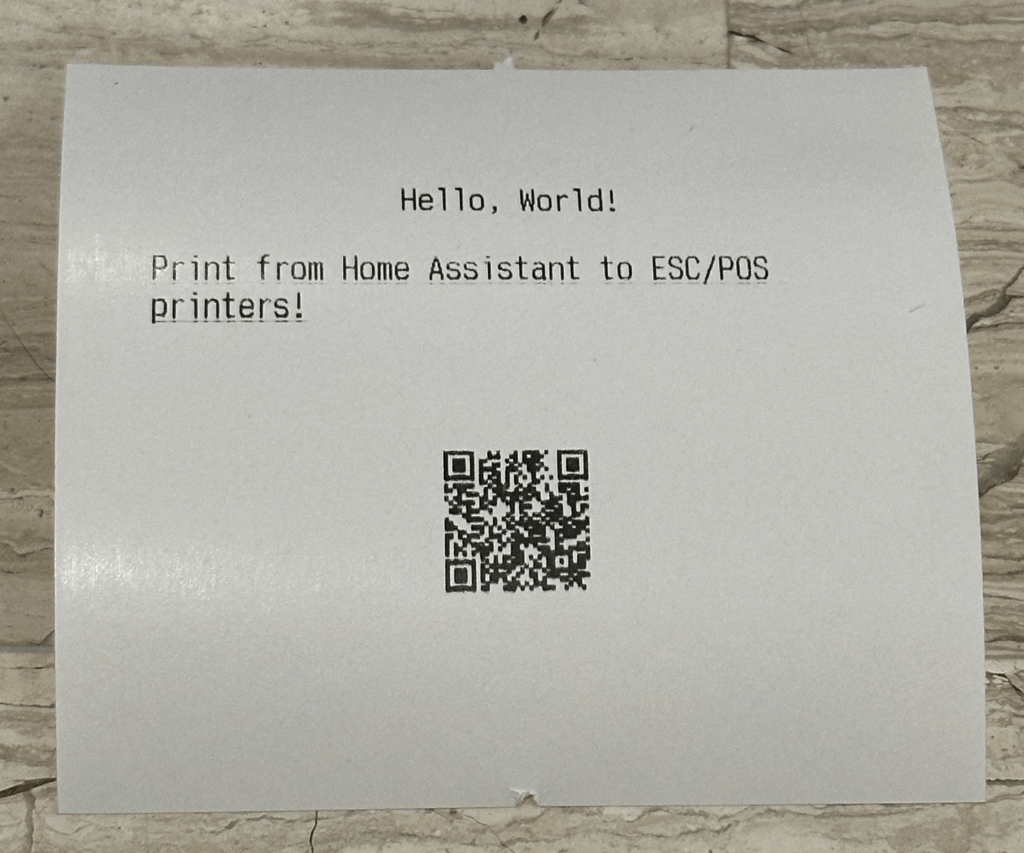
About
ESC/POS Thermal Printer is an integration that prints from Home Assistant automations to thermal printers over network, USB, serial or Bluetooth. It adds actions for printing formatted text, QR codes, barcodes, boxes, tables and images taken from URLs, files, camera entities or image entities. Other actions control paper feed, cut and the buzzer, and some preview a layout or image as a file without using paper. Sensors report paper status, cover state, online state, last print and battery, and buttons on the device feed, cut, beep or print a test page. A guided calibration wizard prints test pages to measure paper width, columns, encoding and image method, then saves the results. It works locally without a cloud, is set up in the UI, and can discover some printers on its own.
Automatic summary of the README and code of cognitivegears/ha-escpos-thermal-printer. Something wrong, or are you the maintainer and want your own text here? Get in touch
Supports
Works locally Talks to your devices on your own network. No vendor cloud in between.
Found by itself Home Assistant spots it on the network and offers to add it.
From the Marketplace Installed through the Marketplace, formerly HACS.
Actively maintained Its author released or pushed a change in the last six months.
Provides
- Sensors
Setting it up
Install it from the Marketplace and restart Home Assistant, then add it under Settings, Devices and services.
Connection Type
- Connection typeChoose Network for TCP/IP connected printers or USB for directly connected printers.
Confirm USB printer
- Printer profileSelect your printer model — or Generic (no profile) if it isn't listed; rebadged models appear as "(compatible)" entries.
Configure network printer
- HostIP address or hostname of the printer.
- PortNetwork port (usually 9100).
- Timeout (seconds)Connection timeout in seconds.
- Printer profileSelect your printer model — or Generic (no profile) if it isn't listed; rebadged models appear as "(compatible)" entries. Choose 'Custom' to enter a profile name manually.
Configure USB printer
- USB DeviceSelect your printer from the detected USB devices.
- Timeout (seconds)Connection timeout in seconds.
- Printer profileSelect your printer model — or Generic (no profile) if it isn't listed; rebadged models appear as "(compatible)" entries.
Select USB device
- USB DeviceSelect your printer from all connected USB devices.
- Input endpoint (advanced)Leave at default (130) unless your printer doesn't work. This is the USB address for receiving status from the printer.
- Output endpoint (advanced)Leave at default (1) unless your printer doesn't work. This is the USB address for sending data to the printer.
- Timeout (seconds)Connection timeout in seconds.
- Printer profileSelect your printer model — or Generic (no profile) if it isn't listed; rebadged models appear as "(compatible)" entries.
Manual USB configuration
- Vendor IDUSB Vendor ID. Use the 0x-prefixed hex form shown by lsusb / discovery, e.g. 0x04B8 (recommended). A plain decimal number is also accepted.
- Product IDUSB Product ID. Use the 0x-prefixed hex form, e.g. 0x0E03. A plain decimal number is also accepted.
- Input endpoint (advanced)Leave at default (130) unless your printer doesn't work. This is the USB address for receiving status from the printer.
- Output endpoint (advanced)Leave at default (1) unless your printer doesn't work. This is the USB address for sending data to the printer.
- Timeout (seconds)Connection timeout in seconds.
- Printer profileSelect your printer model — or Generic (no profile) if it isn't listed; rebadged models appear as "(compatible)" entries.
Configure Bluetooth printer
- Bluetooth deviceSelect your printer from the list of paired Bluetooth devices.
- Timeout (seconds)Connection timeout in seconds.
- Printer profileSelect your printer model — or Generic (no profile) if it isn't listed; rebadged models appear as "(compatible)" entries.
- RFCOMM channelRFCOMM channel (almost always 1 for ESC/POS printers; run 'bluetoothctl info [MAC]' on the host and look for the SerialPort service-record 'Channel:' line to confirm).
Manual Bluetooth configuration
- MAC addressBluetooth MAC address in AA:BB:CC:DD:EE:FF format.
- RFCOMM channelRFCOMM channel (almost always 1 for ESC/POS printers).
- Timeout (seconds)Connection timeout in seconds.
- Printer profileSelect your printer model — or Generic (no profile) if it isn't listed; rebadged models appear as "(compatible)" entries.
After setup
- Timeout (seconds)Connection timeout in seconds.
- Printer profileSelect your printer model. Changing this will reset encoding options.
- Character encodingCharacter encoding/codepage for text.
- Characters per lineNumber of characters per line (columns). Pick a preset or type a custom number.
- Paper width in pixels (optional)Overrides the profile's printable width for images. Leave empty to use the profile. Common values: 384 (58 mm), 576 (80 mm).
- Default alignmentDefault text alignment for printing.
- Default cut modeDefault paper cut mode after printing.
- Image reliability profilePicks safe defaults for image chunk size, inter-chunk delay, and ESC/POS image command. Service-call options always override these.
- Image printing implementationESC/POS command set used to print images. Auto follows the printer profile; override if images print garbled or fail.
- Keep persistent connectionKeep the connection open between print jobs (network printers only).
- Status check interval (seconds)How often to check printer status (0 to disable).
- Allow local image URLsPermit print_image_url (and the other image services) to fetch URLs that resolve to private/LAN/loopback addresses and to use non-standard ports (e.g. a local camera, a Frigate proxy on :5000, or your Home Assistant instance on :8123). Off by default. Cloud-metadata/link-local addresses stay blocked even when enabled.
- Write chunk size (bytes)Maximum bytes per write call. Set to 128 for ESPHome/ESP32 serial proxies to prevent buffer overruns. 0 disables chunking.
- Inter-chunk delay (ms)Pause between consecutive chunks (milliseconds). Allows the receiving device time to drain its buffer. Only applies when chunk size is non-zero.
- Action
- Patterns that printed cleanly
- Action
- Widest box with an intact right border
- Action
- Characters on the first line
- Action
- Lines that match their own expected text
- Action
- Printer model (optional, for the share link)
- Action
- Profile nameThe exact profile key from escpos-printer-db.
Texts from the code of cognitivegears/ha-escpos-thermal-printer.
Entities
- Binary sensorsOnline, Cover open
- ButtonsFeed paper, Cut paper, Beep, Sample test print
- SensorsLast image print, Last print, Battery, Paper status
Actions
- BeepTrigger the printer buzzer (if supported). Select a target — printer device, entity, area, floor, or label. If no target is selected, prints to every configured printer (deprecated fallback).Fields: Broadcast, Duration, Times
- Print dither test sheetPrint a calibration sheet — a pixel ruler plus a threshold sweep strip — for tuning image dither/threshold settings (not the printer calibration wizard — see the Calibration docs page). Burns ~10 cm of paper. If no target is selected, prints to every configured printer (deprecated fallback).Fields: Broadcast, Cut, Feed Lines
- Cut PaperCut the paper. Select a target — printer device, entity, area, floor, or label. If no target is selected, prints to every configured printer (deprecated fallback).Fields: Broadcast, Feed Before Cut, Mode
- Feed PaperFeed the paper a number of lines. Select a target — printer device, entity, area, floor, or label. If no target is selected, prints to every configured printer (deprecated fallback).Fields: Broadcast, Lines
- Preview Box (no paper)Run the print_box layout pipeline and write the rendered text to a .txt file WITHOUT printing it. Lets you iterate on borders, padding, and width without burning paper. The cut/feed fields are deliberately omitted — a text file has no paper. Returns path, width, line_count, and codepage as service response data — enable "Return response data" in Developer Tools to see the values.Fields: Alignment, Device, Output Path, Padding, Border Style, Text, Total Width
- Preview Image (no paper)Run the full image pipeline (dither, resize, etc) and write the 1-bit PNG to disk WITHOUT printing it. Returns the output path so automations can chain a notification. Printer-communication options (high density, impl, fragment height, chunk delay, center, cut, feed) are not exposed here because they have no effect on the file written to disk — they only matter when streaming to a real printer.Fields: Alignment, Auto-Resize Large Sources, Autocontrast, Device, Dither Mode, Fallback Image, Image, Width (pixels), Invert Colors, Mirror Horizontally
- Preview Table (no paper)Run the print_table layout pipeline and write the rendered text to a .txt file WITHOUT printing it. Lets you iterate on column widths, alignment, and borders without burning paper. The cut/feed fields are deliberately omitted — a text file has no paper. Returns path, width, line_count, and codepage as service response data — enable "Return response data" in Developer Tools to see the values.Fields: Column Alignments, Column Widths, Device, Header Row, Output Path, Row Separators, Rows, Border Style, Total Width
- Print BarcodePrint a barcode. Select a target — printer device, entity, area, floor, or label. If no target is selected, prints to every configured printer (deprecated fallback).Fields: Alignment, Barcode Type, Broadcast, Checksum, Code, Cut, Feed Lines, Font, Rendering Mode, Height
- Print BoxPrint text wrapped in a printable border (single/double/ASCII glyphs). If no target is selected, prints to every configured printer (deprecated fallback).Fields: Alignment, Broadcast, Cut, Feed Lines, Padding, Border Style, Text, Total Width
- Print Camera SnapshotPrint a live snapshot from a camera entity. Convenience wrapper around print_image with a camera-entity selector for a friendlier UI. If no target is selected, prints to every configured printer (deprecated fallback).Fields: Alignment, Auto-Resize Large Sources, Autocontrast, Broadcast, Camera, Chunk Delay (ms), Cut, Dither Mode, Fallback Image, Feed Lines
- Print Image (mixed source)Print an image from a URL, file path, camera.[id], image.[id], or base64 data URI. Automations can still use a Jinja template for this field — HA renders it before the service call is dispatched — but the field itself is a plain string, not evaluated server-side. For a friendlier UI, prefer the focused services (Print Image from URL, from Path, Camera Snapshot, Image Entity) — see docs/images.md. If no target is selected, prints to every configured printer (deprecated fallback).Fields: Alignment, Auto-Resize Large Sources, Autocontrast, Broadcast, Chunk Delay (ms), Cut, Dither Mode, Fallback Image, Feed Lines, Fragment Height
- Print Image EntityPrint the current frame from an HA image entity (weather radar, ML overlay, generated chart, etc). If no target is selected, prints to every configured printer (deprecated fallback).Fields: Alignment, Auto-Resize Large Sources, Autocontrast, Broadcast, Chunk Delay (ms), Cut, Dither Mode, Fallback Image, Feed Lines, Fragment Height
- Print Image from PathPrint an image from a local file path. The path must lie inside one of Home Assistant's allowlist_external_dirs (typically /config or /media — add directories under homeassistant -> allowlist_external_dirs in configuration.yaml if needed). If no target is selected, prints to every configured printer (deprecated fallback).Fields: Alignment, Auto-Resize Large Sources, Autocontrast, Broadcast, Chunk Delay (ms), Cut, Dither Mode, Fallback Image, Feed Lines, Fragment Height
- Print Image from URLPrint an image fetched from an HTTP(S) URL. SSRF-aware — private, loopback, and link-local addresses are refused. If no target is selected, prints to every configured printer (deprecated fallback).Fields: Alignment, Auto-Resize Large Sources, Autocontrast, Broadcast, Chunk Delay (ms), Cut, Dither Mode, Fallback Image, Feed Lines, Fragment Height
- Print Key/Value TablePrint a two-column label/value table — receipt totals, sensor readings, ingredient lists. Labels left-aligned, values per "value_align" (default right). If no target is selected, prints to every configured printer (deprecated fallback).Fields: Broadcast, Cut, Feed Lines, Items, Label Width, Border Style, Total Width, Value Alignment
- Print Formatted MessagePrint a message with full text formatting (bold, underline, size, alignment) plus an optional image attachment that prints as a single uninterrupted receipt. Targets an ESC/POS notify entity. See docs/images.md.Fields: Alignment, Bold, Cut, Density, Encoding, Feed Lines, Font, Height, Image, Image Alignment
- Print QR CodePrint a QR code. Select a target — printer device, entity, area, floor, or label. If no target is selected, prints to every configured printer (deprecated fallback).Fields: Alignment, Broadcast, Cut, Data, Error Correction, Feed Lines, Size
- Print SeparatorPrint a single decorative rule built by repeating one character to fill the printer's line width. Examples — "-" for a single rule, "=" for a heavy rule, "*" or "_" for decorative bars. If no target is selected, prints to every configured printer (deprecated fallback).Fields: Broadcast, Character, Cut, Feed Lines, Repeat, Width
- Print TablePrint a multi-column table (receipt-style) with optional borders and header. If no target is selected, prints to every configured printer (deprecated fallback).Fields: Broadcast, Column Alignments, Column Widths, Cut, Feed Lines, Header Row, Row Separators, Rows, Border Style, Total Width
- Print Text (Raw Encoding)Print text to the ESC/POS printer using raw encoding. Select a target — printer device, entity, area, floor, or label. If no target is selected, prints to every configured printer (deprecated fallback).Fields: Alignment, Bold, Broadcast, Cut, Density, Encoding, Feed Lines, Font, Height, Invert
Troubleshooting
- DiagnosticsDownloads a diagnostics file to attach to a bug report.
From the README
Print receipts, labels, QR codes, and more from Home Assistant automations. Connect any ESC/POS capable network, USB, bluetooth, or serial thermal printer and start printing in minutes.
- Print text with formatting (bold, underline, alignment, font sizes, invert, density, font)
- Print QR codes, barcodes, and images from URLs, files, camera/image entities, or base64 (guide)
- Text effects: boxes, multi-column tables, and custom-font / rotated text (guide)
- Paper feed and cut control
- Paper status sensor (network/USB): automate on paper low / paper out
- Cover-open sensor (network/USB): automate on a stuck-open lid
- Last-print timestamp sensor: automate on "no receipt printed today"
- Image-print diagnostics sensor: success/failure counts and last-print details for tuning image options (guide)
- Buzzer/beeper support
- UTF-8 text with automatic character conversion
- 35+ printer profiles with automatic feature detection, plus 23 rebadged/clone models available directly as "(compatible)" dropdown entries
- Guided calibration wizard: prints test pages to measure image implementation, paper width, columns, and codepage, then saves them for you (guide)

Shows in Vulpo
Button card, Chart card, Apple Watch.Information
- Installs
- 115 sharing analytics
- GitHub stars
- 115
- Connection
- Works locally
- Upkeep
- Updated in the last 6 months
- Version
- v1.2.0,
- Category
- Computers and network, Printers
- Kind
- Marketplace integration
- Needs
- Needs the Marketplace (HACS on 2026.10 and older)
- Domain
escpos_printer- Issues
- Report an issue