
IDM Heatpump
Xerolux
On Home Assistant 2026.11 or newer? Open it in the Marketplace
- Installs
- 229 sharing analytics
- GitHub stars
- 16
- Connection
- Works locally
- Upkeep
- Updated in the last 6 months
- Version
- v0.23.1,
- Category
- Climate
- Kind
- Marketplace integration
- Needs
- Needs the Marketplace (HACS on 2026.10 and older)
- Domain
idm_heatpump- Issues
- Report an issue
Independent directory, made by the developer of Vulpo. Not affiliated with Home Assistant or the Open Home Foundation.
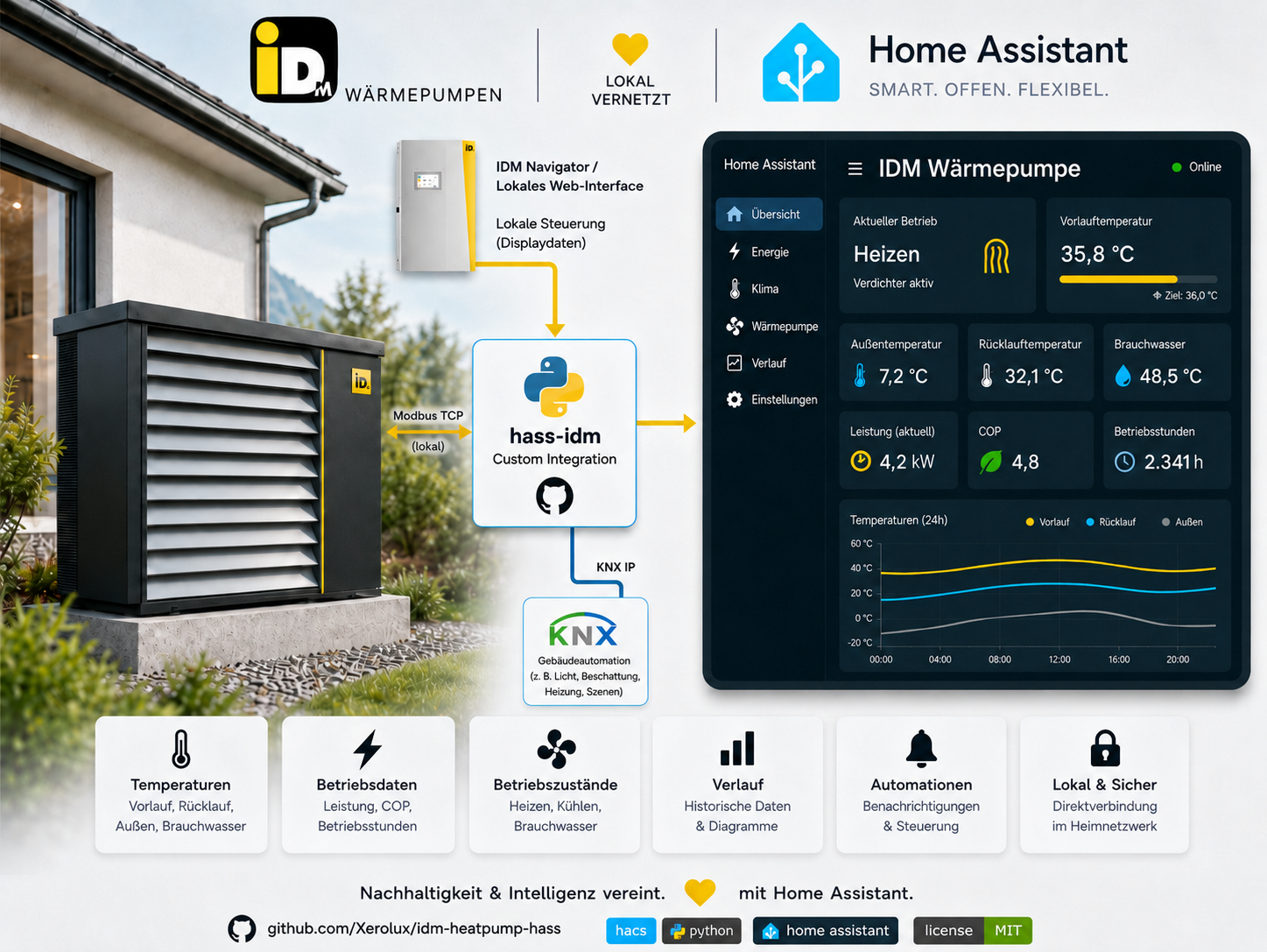
Screenshots From the README of Xerolux/idm-heatpump-hass.
About
IDM Heatpump connects IDM Navigator 2.0, Navigator 10 and Navigator Pro heat pumps to Home Assistant over local Modbus TCP. It works without a cloud service and covers heating circuits, domestic hot water, PV surplus, energy data and diagnostics. Entities come as sensors, binary sensors, climate, water heaters, numbers, selects, switches and buttons, and actions can set the system mode, acknowledge errors and set the controller clock. An optional feature profile adds calculated efficiency, cycle and short-cycle analysis and domestic hot-water boost controls, while external PV, battery and room sensors can be forwarded to the controller. Optional extras include a read-only experimental AI adviser that builds reports from measured data, and a KNX bridge that works without IDM's gateway module. It is set up in the UI.
Automatic summary of the README and code of Xerolux/idm-heatpump-hass. Something wrong, or are you the maintainer and want your own text here? Get in touch
Supports
Works locally Talks to your devices on your own network. No vendor cloud in between.
From the Marketplace Installed through the Marketplace, formerly HACS.
Actively maintained Its author released or pushed a change in the last six months.
Provides
- Climate
- Water heaters
- Switches
- Sensors
Setting it up
Install it from the Marketplace and restart Home Assistant, then add it under Settings, Devices and services.
Set up IDM Navigator Heat Pump
- NameDisplay name for the device in Home Assistant, e.g. "IDM Heat Pump".
- Modbus IP / HostnameIP address or hostname used for Modbus TCP. If you use a Modbus proxy, enter the proxy address here.
- PortModbus TCP port of the controller. Default is 502.
- Slave IDModbus slave ID. Default is 1. Only change this if multiple devices share the same bus.
- Use local Navigator web accessDefault: enabled. Explicitly disable this only when you want Modbus without additional local Navigator web data.
- Local network PIN (Navigator web)Enter the Local network code configured on the Navigator display. Do not enter a cloud/app password or a two-factor code. Leave empty for Modbus-only operation; 0 disables local web access on the controller.
- Use a Modbus proxyEnable this when the Modbus address above is a proxy and not the heat pump itself.
- Original heat pump IP for web accessOnly needed when using a Modbus proxy. Enter the original IP address or hostname of the heat pump, for example 192.0.2.103.
Connection
- Modbus IP / HostnameIP address or hostname used for Modbus TCP. If you use a Modbus proxy, enter the proxy address here.
- PortModbus TCP port. Default is 502.
- Slave IDModbus slave ID. Default is 1.
- Use local Navigator web accessDefault: enabled. Explicitly disable this only when you want Modbus without additional local Navigator web data.
- Local network PIN (Navigator web)Local network code configured on the Navigator display. Cloud/app passwords and two-factor codes do not work here. Leave empty for Modbus-only operation; 0 disables local web access on the controller.
- Use a Modbus proxyEnable this when the Modbus address above is a proxy and not the heat pump itself.
- Original heat pump IP for web accessOnly needed when using a Modbus proxy. Enter the original IP address or hostname of the heat pump, for example 192.0.2.103.
- Navigator modelOnly change if the automatic detection does not work correctly. The model is detected automatically in almost all cases. A wrong manual choice can degrade the register map and lead to missing or unavailable sensors.
Options
- Scan intervalHow often to read data from the heat pump (in seconds). Shorter intervals mean faster updates but more network traffic.
- Hide unused sensorsDoes not create entities for unused or unsupported registers when the latest poll returns sentinel values such as −1.0, 255, 65535 or −32768. Normal 0 values stay visible.
- Heating circuitsSelect all heating circuits that are installed and active in your system. Circuit A is always active.
- Number of zone modulesNumber of installed IDM zone modules. Select 0 if your system has none; selecting a higher number opens another page for the room count of each module. Reducing the count removes mappings for zones that no longer exist.
- Feature profileVanilla exposes the core IDM entities. iDM Smart Energy & Comfort additionally enables calculated efficiency sensors, cycle analysis, short-cycle detection and the safe DHW boost controls. It does not independently change heat-pump settings.
- Enable automatic PV surplus DHW chargingStarts the safe DHW boost automatically when the explicitly selected PV surplus (or PV production minus house consumption) is available. External power forwarding must be configured with the source entities. Disabled by default.
- Minimum PV surplusThe surplus must remain above this threshold when evaluated. No write is made when a source is missing, unavailable or has an invalid unit.
- Minimum battery state of chargePrevents automatic charging from using a battery below this state of charge. Leave the battery source empty in the external power mapping to disable this additional condition.
- Automatic DHW target temperatureAutomatic boost raises only the DHW setpoint and leaves the system mode unchanged. Starts at least 5 °C below target in Automatic or Hot-water-only mode; restores the previous setpoint.
- Automatic DHW boost durationMaximum time for one automatic DHW boost before the previous state is restored.
- Automation cooldownFull waiting time after an automatic boost ends. Saved across reloads and restarts. Does not limit the Navigator's own PV heating-buffer charging triggered by forwarded power values.
- Automatic external power forwardingEnables selection of existing Home Assistant sensors and cyclic writes to the IDM GLT power registers.
- Dynamic electricity price sensorOptional local Home Assistant sensor in EUR/kWh, €/kWh or ct/kWh. If selected, observed energy is priced at the current tariff. Missing or invalid prices leave that energy unpriced rather than using the fixed estimate.
- Differential-temperature controlled circuitsSelect only installed circuits whose heating system is set to differential temperature control in the Navigator (for example a wood stove). Shows storage, reference, temperature difference and status; removes normal heating controls. No automatic detection.
- Predictive advisor PV forecast sensor (optional)Optional — leave empty if you have none; the advisor works fully without it. A Home Assistant sensor with an hourly PV production forecast (e.g. PVForecast or Solcast attributes) is only the basis for PV-based hot-water window recommendations.
Configure zone modules
- Zone 1 – RoomsNumber of active room sensors in Zone 1 (1–8).
- Zone 2 – RoomsNumber of active room sensors in Zone 2 (1–8).
- Zone 3 – RoomsNumber of active room sensors in Zone 3 (1–8).
- Zone 4 – RoomsNumber of active room sensors in Zone 4 (1–8).
- Zone 5 – RoomsNumber of active room sensors in Zone 5 (1–8).
- Zone 6 – RoomsNumber of active room sensors in Zone 6 (1–8).
- Zone 7 – RoomsNumber of active room sensors in Zone 7 (1–8).
- Zone 8 – RoomsNumber of active room sensors in Zone 8 (1–8).
- Zone 9 – RoomsNumber of active room sensors in Zone 9 (1–8).
- Zone 10 – RoomsNumber of active room sensors in Zone 10 (1–8).
Room temp forwarding
- Heating circuit A temperature sensorForward this sensor to hc_a_ext_room_temp.
- Heating circuit B temperature sensorForward this sensor to hc_b_ext_room_temp.
- Heating circuit C temperature sensorForward this sensor to hc_c_ext_room_temp.
- Heating circuit D temperature sensorForward this sensor to hc_d_ext_room_temp.
- Heating circuit E temperature sensorForward this sensor to hc_e_ext_room_temp.
- Heating circuit F temperature sensorForward this sensor to hc_f_ext_room_temp.
- Heating circuit G temperature sensorForward this sensor to hc_g_ext_room_temp.
Humidity forwarding
- Humidity sensorForward this sensor to ext_humidity.
Storage temp forwarding
- Heat storage temperature sensorForward this sensor to glt_heat_storage_temp.
- Cold storage temperature sensorForward this sensor to glt_cold_storage_temp.
- DHW storage bottom temperature sensorForward this sensor to glt_dhw_temp_bottom.
- DHW storage top temperature sensorForward this sensor to glt_dhw_temp_top.
Modbus connection failed
- Next step
- Local web PINRequired for web-only mode. Use the Navigator's Local network code, not cloud/app credentials or a two-factor code. Empty or 0 means local web access is disabled.
- Original heat pump IP for web accessRequired when Modbus uses a proxy. Enter the address of the heat pump itself.
After setup
- Scan intervalHow often to read data from the heat pump (in seconds). Shorter intervals mean faster updates but more network traffic.
- Hide unused sensorsDoes not create entities for unused or unsupported registers when the latest poll returns sentinel values such as −1.0, 255, 65535 or −32768. Normal 0 values stay visible.
- Heating circuitsSelect all heating circuits that are installed and active in your system. Circuit A is always active.
- Number of zone modulesNumber of installed IDM zone modules. Select 0 if your system has none; selecting a higher number opens another page for the room count of each module. Reducing the count removes mappings for zones that no longer exist.
- Feature profileVanilla exposes the core IDM entities. iDM Smart Energy & Comfort additionally enables calculated efficiency sensors, cycle analysis, short-cycle detection and the safe DHW boost controls. It does not independently change heat-pump settings.
- Enable automatic PV surplus DHW chargingStarts the safe DHW boost automatically when the explicitly selected PV surplus (or PV production minus house consumption) is available. External power forwarding must be configured with the source entities. Disabled by default.
- Minimum PV surplusThe surplus must remain above this threshold when evaluated. No write is made when a source is missing, unavailable or has an invalid unit.
- Minimum battery state of chargePrevents automatic charging from using a battery below this state of charge. Leave the battery source empty in the external power mapping to disable this additional condition.
- Automatic DHW target temperatureAutomatic boost raises only the DHW setpoint and leaves the system mode unchanged. Starts at least 5 °C below target in Automatic or Hot-water-only mode; restores the previous setpoint.
- Automatic DHW boost durationMaximum time for one automatic DHW boost before the previous state is restored.
- Automation cooldownFull waiting time after an automatic boost ends. Saved across reloads and restarts. Does not limit the Navigator's own PV heating-buffer charging triggered by forwarded power values.
- Automatic external power forwardingEnables selection of existing Home Assistant sensors and cyclic writes to the IDM GLT power registers.
- Dynamic electricity price sensorOptional local Home Assistant sensor in EUR/kWh, €/kWh or ct/kWh. If selected, observed energy is priced at the current tariff. Missing or invalid prices leave that energy unpriced rather than using the fixed estimate.
- Differential-temperature controlled circuitsSelect only installed circuits whose heating system is set to differential temperature control in the Navigator (for example a wood stove). Shows storage, reference, temperature difference and status; removes normal heating controls. No automatic detection.
- Predictive advisor PV forecast sensor (optional)Optional — leave empty if you have none; the advisor works fully without it. A Home Assistant sensor with an hourly PV production forecast (e.g. PVForecast or Solcast attributes) is only the basis for PV-based hot-water window recommendations.
- Zone 1 – RoomsNumber of active room sensors in Zone 1 (1–8).
- Zone 2 – RoomsNumber of active room sensors in Zone 2 (1–8).
- Zone 3 – RoomsNumber of active room sensors in Zone 3 (1–8).
- Zone 4 – RoomsNumber of active room sensors in Zone 4 (1–8).
- Zone 5 – RoomsNumber of active room sensors in Zone 5 (1–8).
- Zone 6 – RoomsNumber of active room sensors in Zone 6 (1–8).
- Zone 7 – RoomsNumber of active room sensors in Zone 7 (1–8).
- Zone 8 – RoomsNumber of active room sensors in Zone 8 (1–8).
- Zone 9 – RoomsNumber of active room sensors in Zone 9 (1–8).
- Zone 10 – RoomsNumber of active room sensors in Zone 10 (1–8).
- Heating circuit A temperature sensorForward this sensor to hc_a_ext_room_temp.
- Heating circuit B temperature sensorForward this sensor to hc_b_ext_room_temp.
- Heating circuit C temperature sensorForward this sensor to hc_c_ext_room_temp.
- Heating circuit D temperature sensorForward this sensor to hc_d_ext_room_temp.
- Heating circuit E temperature sensorForward this sensor to hc_e_ext_room_temp.
- Heating circuit F temperature sensorForward this sensor to hc_f_ext_room_temp.
- Heating circuit G temperature sensorForward this sensor to hc_g_ext_room_temp.
- Humidity sensorForward this sensor to ext_humidity.
- Heat storage temperature sensorForward this sensor to glt_heat_storage_temp.
- Cold storage temperature sensorForward this sensor to glt_cold_storage_temp.
- DHW storage bottom temperature sensorForward this sensor to glt_dhw_temp_bottom.
- DHW storage top temperature sensorForward this sensor to glt_dhw_temp_top.
- Base group address
- Object groupsOnly objects from the selected groups are published and registered.
- Group address overridesOne register = address per line, for example outdoor_temp = 1/2/3. Lines starting with # are ignored. Leave empty to derive every address from the base address.
- PV surplus sensorW or kW; written to IDM pv_surplus (registers 74–75).
- PV production sensorW or kW; written to IDM pv_production (registers 78–79).
- House consumption sensorW or kW; written to IDM house_consumption (registers 82–83).
- Battery charge/discharge sensorW or kW. Select invert when the source uses the openWB convention (negative means discharge).
- Battery state of charge sensorPercent from 0 to 100, including fractional values. Rounded to an integer for the GLT register. Clear this field to stop forwarding and remove the optional HA battery condition; no fallback is written. The read sentinel -1 is not sent.
- Electric heater power sensorW or kW; written to IDM electric_heater_power (registers 76–77).
- Bidirectional grid power sensorW or kW from a bidirectional grid-connection meter. The integration normalizes the sign and derives pv_surplus (registers 74–75); together with the PV production sensor it also derives house_consumption (registers 82–83), including mapped battery flow. Explicit surplus and house-consumption sensors take precedence.
- Battery sign conventionAs-is means the source already uses the IDM convention. Invert changes the battery value's sign.
- Grid meter sign conventionPositive = grid import (negative = export) or positive = export (negative = grid import). The derived pv_surplus always reports positive for export/surplus and negative for grid import.
- Yes, I understand and want to enable these functions
Texts from the code of Xerolux/idm-heatpump-hass.
Entities
- Binary sensorsAdvisor anomaly detected, Advisor optimization available, Last compressor cycle too short, PV surplus operation, Compressor 1, Compressor 2, Compressor 3, Compressor 4, Cooling demand, Hot water demand, Communication problem, DHW does not reach target, and 26 more
- ButtonsAcknowledge Errors, AI daily report (experimental), AI efficiency explanation (experimental), AI health explanation (experimental), AI weekly report (experimental), Reload connection, Cancel DHW boost, Start DHW boost, Request DHW priority charge
- NumbersBattery discharge (external setpoint), Battery state of charge (external setpoint), Bivalence point 1, Bivalence point 1 (2nd heat generator), Bivalence point 1 (3rd heat generator), Bivalence point 2, Bivalence point 2 (2nd heat generator), Bivalence point 2 (3rd heat generator), Cascade bivalence cooling alternative, Cascade bivalence cooling parallel, Cascade bivalence hot water alternative, Cascade bivalence hot water parallel, and 31 more
- SelectsSolar mode, Solar operating mode, System mode
- SensorsAdvisor building heat loss, Advisor building thermal inertia, Advisor confidence, Advisor hot water recommendation, Advisor efficiency score, Advisor expected COP, Advisor health score, Advisor 24 hour plan, Advisor operation reason, Advisor optimal flow temperature, Advisor predicted heat demand 24h, Advisor recommendations, and 265 more
- SwitchesExternal cooling demand, External hot water charging demand, External heating demand, One-time hot water demand
- Water heatersDomestic Hot Water, Hot water (Web)
Actions
- Set System ModeSets the operating mode of the heat pump.Fields: Mode
- Acknowledge ErrorsAcknowledges/clears active error messages on the heat pump.
- Write RegisterWrites a value directly to a Modbus register. Only for advanced users - incorrect values can damage the system.Fields: Register address, Value, Datatype, Acknowledge risk
- Set External ClimateWrites external room temperature and optional humidity to the IDM GLT registers.Fields: Heating circuit, Room temperature, Humidity
- Set External PowerWrites external power and battery measurements to the IDM GLT registers.Fields: PV surplus, PV production, House consumption, Battery discharge, Battery state of charge, Electric heater power
- Export KNX group addressesReturn the IDM KNX object table for this controller so it can be recreated in ETS.Fields: Base group address, Object groups
- Generate experimental AI reportRead-only, separately enabled. Uses the selected provider; cloud requires explicit consent. Up to 300 seconds locally, 120 seconds for cloud.Fields: IDM integration, Report type
- Export experimental AI dashboardReturn a complete dashboard configuration with your current entity IDs.Fields: IDM integration
- Set controller clockSets the Navigator clock to the given time (default: now) through the local web interface.Fields: Date and time
Troubleshooting
- DiagnosticsDownloads a diagnostics file to attach to a bug report.
- Repair noticesNotices it can show in Settings, Repairs:Solar thermal system not detected, IDM web PIN not configured, IDM web supplement data unavailable, IDM Navigator web PIN rejected, IDM Navigator web address not found, IDM Navigator web connection refused, IDM Navigator web interface did not respond, IDM Navigator web response could not be read, Cannot connect to IDM heat pump, IDM hostname not found, IDM Modbus TCP connection refused, IDM Modbus TCP connection timed out, No Modbus response from IDM heat pump, IDM firmware or Modbus function not supported, IDM connection returned no usable data
From the README
Monitor and control your IDM Navigator heat pump locally through Modbus TCP — without a cloud dependency.
Website · Documentation · Download · Community

Shows in Vulpo
Quick Toggle card, Climate card, Button card, Select card, Apple Watch, Control Center, Climate Live Activity.Information
- Installs
- 229 sharing analytics
- GitHub stars
- 16
- Connection
- Works locally
- Upkeep
- Updated in the last 6 months
- Version
- v0.23.1,
- Category
- Climate
- Kind
- Marketplace integration
- Needs
- Needs the Marketplace (HACS on 2026.10 and older)
- Domain
idm_heatpump- Issues
- Report an issue