On Home Assistant 2026.10 or older? Open it in HACS
- Installs
- 87 sharing analytics
- GitHub stars
- 54
- Connection
- Works locally
- Upkeep
- Updated in the last 6 months
- Version
- v0.2.10,
- Category
- AI and voice, AI models
- Kind
- Marketplace integration
- Needs
- Needs the Marketplace (HACS on 2026.10 and older)
- Domain
netorbit- Issues
- Report an issue
Independent directory, made by the developer of Vulpo. Not affiliated with Home Assistant or the Open Home Foundation.
Screenshots From the README of the-scott-davis/netorbit.
About
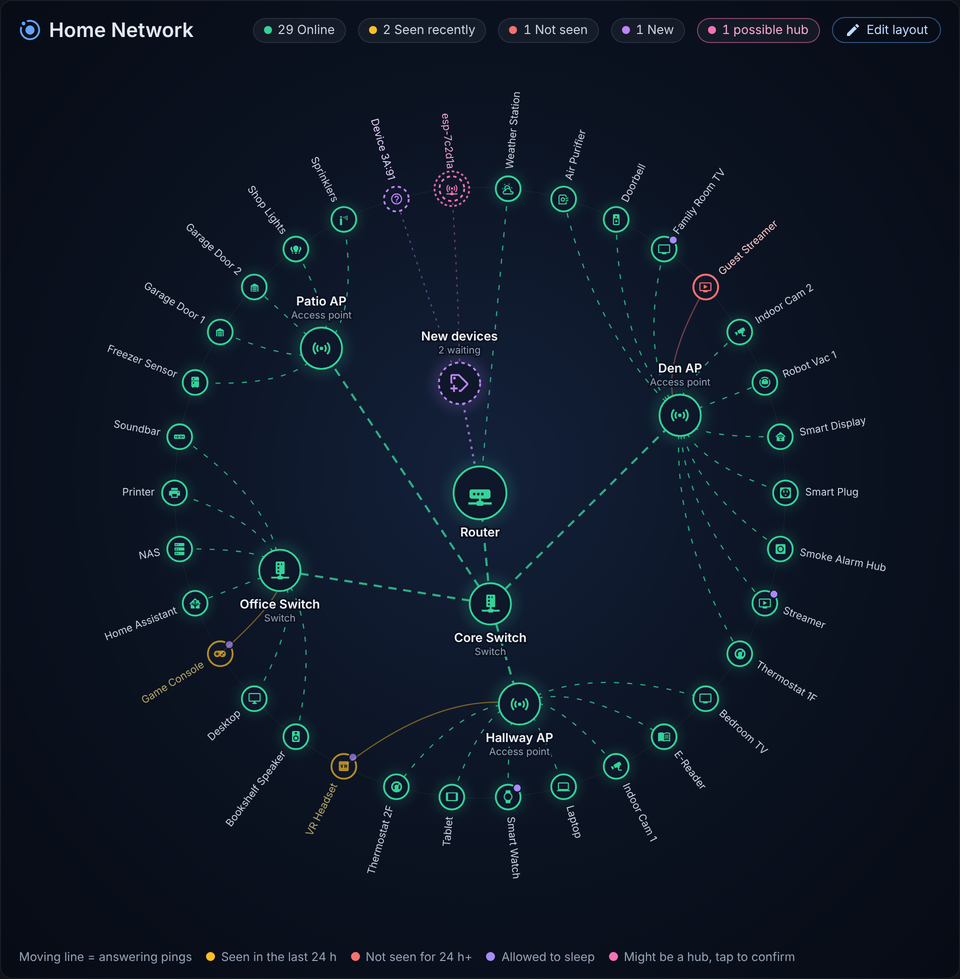
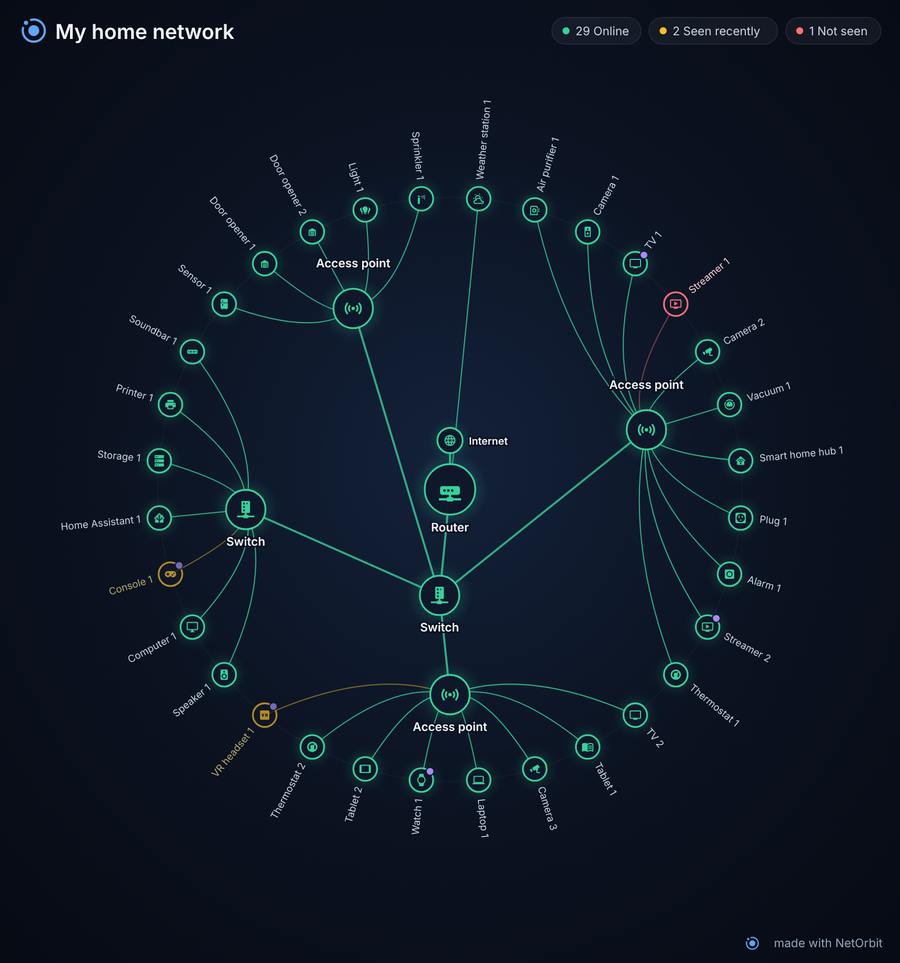
Live radial map of your home network for Home Assistant. Finds your gear, places devices under the right hub, and lets you fix the rest by drag and drop, a pasted client list, or an AI assistant.
Description from the-scott-davis/netorbit

Shows in Vulpo
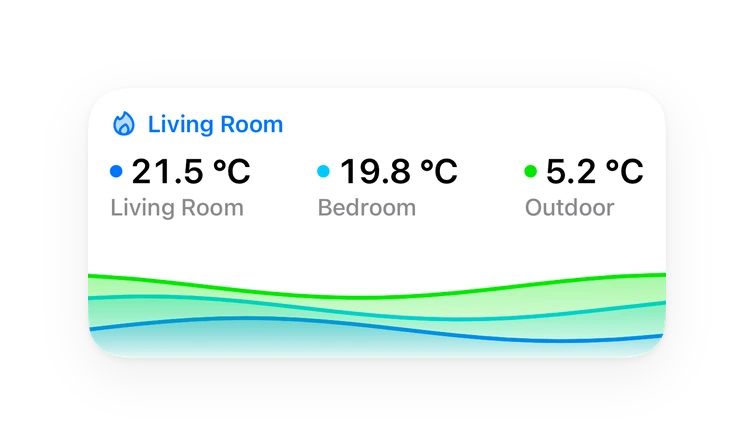
Chart card, Apple Watch.Supports
- Works locallyTalks to your devices on your own network. No vendor cloud in between.
- From the MarketplaceInstalled through the Marketplace, formerly HACS.
- Actively maintainedIts author released or pushed a change in the last six months.
Provides
- Sensors
Setting it up
Install it from the Marketplace and restart Home Assistant, then add it under Settings, Devices and services.
Set up NetOrbit
- SubnetIn CIDR form, for example 10.0.0.0/24. Up to 1024 hosts.
- Router IPYour router. It becomes the center of the map.
- Tracking modeAutomatic tracks everything it finds. Manual only tracks devices you add and lists the rest as new.
- Ping intervalHow often tracked devices are pinged.
After setup
- Tracking mode
- Ping interval
- Discovery scan intervalHow often the whole subnet is swept for new devices.
- Mark as not seen afterA device that has not answered for this long turns red and fires a netorbit_device_stale event.
- Ignore randomized (private) MAC addressesPhones and laptops often use a private address per network. Leave this on to keep them off the map.
- Add hubs automatically when NetOrbit is sureWhen off, everything NetOrbit finds is listed under Review suggested hubs instead.
- Group devices by type when the layout is unknownOn networks where nothing reports which access point a device uses, the card groups devices into TVs, computers, smart home and so on.
- Show the internet on the mapEach ping round also pings two public DNS servers (1.1.1.1 and 8.8.8.8). The Internet node turns red when neither answers for two rounds while your router still does, and fires netorbit_internet_down and netorbit_internet_up events.
- Read MAC tables from managed switches (SNMP)NetOrbit asks each device once an hour whether it is a managed switch, using read-only SNMP, then reads the switch's MAC table to place devices automatically.
- SNMP community (password)Leave empty to try the factory default. If you changed your switches' read-only community, enter it here.
- Name
- IP address (optional)Leave empty for unmanaged switches with no IP. Hubs with an IP are pinged like devices.
- Type
- Connected to
- Hub
- Name
- IP address (optional)
- Type
- Connected to
- Remove this hub
- Found on the network
- IP address
- Name (optional)
- Icon (optional)
- Connected through (Automatic lets NetOrbit decide)
- Allowed to sleep (never fires a stale event)
- Device
- Name (empty uses the discovered name)
- Icon (empty picks one automatically)
- Connected through (Automatic lets NetOrbit decide)
- Allowed to sleep (never fires a stale event)
- Stop tracking and ignore this device
- Start tracking
- Ignore
Texts from the code of the-scott-davis/netorbit.
Entities
- SensorsDevices online
Actions
- Track deviceStart tracking a device by MAC or IP address.
- MAC address
- IP address
- Name
- Icon
- Hub
- Allowed to sleep
- Config entry
- Ignore deviceStop tracking a device and hide it from new device lists.
- MAC address
- IP address
- Config entry
- Device
- Scan nowSweep the subnet for new devices right away.
- Config entry
- Place device under a hubPin one or more devices to a hub. Manual placement beats automatic placement.
- Devices
- Hub
- Config entry
- Reset placementLet NetOrbit place these devices automatically again.
- Devices
- Config entry
- Add hubAdd a router, switch, access point or mesh node to the map.
- Name
- Type
- Connected to
- IP address
- MAC address
- From device
- Config entry
- Remove hubRemove a hub. Its devices move to the hub it connected to.
- Hub
- Config entry
- Import client listPlace every device whose MAC or IP appears in the text under one hub.
- Hub
- Text
- Add unknown devices
- Config entry
- Confirm hubMark a device (usually a suggested one) as a hub.
- Device
- Type
- Name
- Move devices here
- Config entry
- Dismiss hub suggestionStop suggesting this device as a hub.
- Device
- Config entry
- Update hubRename a hub, change its type or what it connects to.
- Hub
- Name
- Type
- Connected to
- Config entry
- Export settingsReturn every name, icon, hub and placement you have set, keyed by MAC address, so you can back it up.
- Config entry
- Import settingsRestore settings from an export.
- Export
- Replace
- Config entry
Troubleshooting
- DiagnosticsDownloads a diagnostics file to attach to a bug report.
From the README
A live, radial map of your home network for Home Assistant. Every device orbits the router, switch, access point or mesh node it connects through, colored by whether it's answering right now, was seen recently, or has gone quiet.
Install it, click Submit, and NetOrbit draws the best map your network can tell it about. Then fix anything it couldn't work out by dragging devices around, pasting a client list, or asking an AI assistant to do it for you.
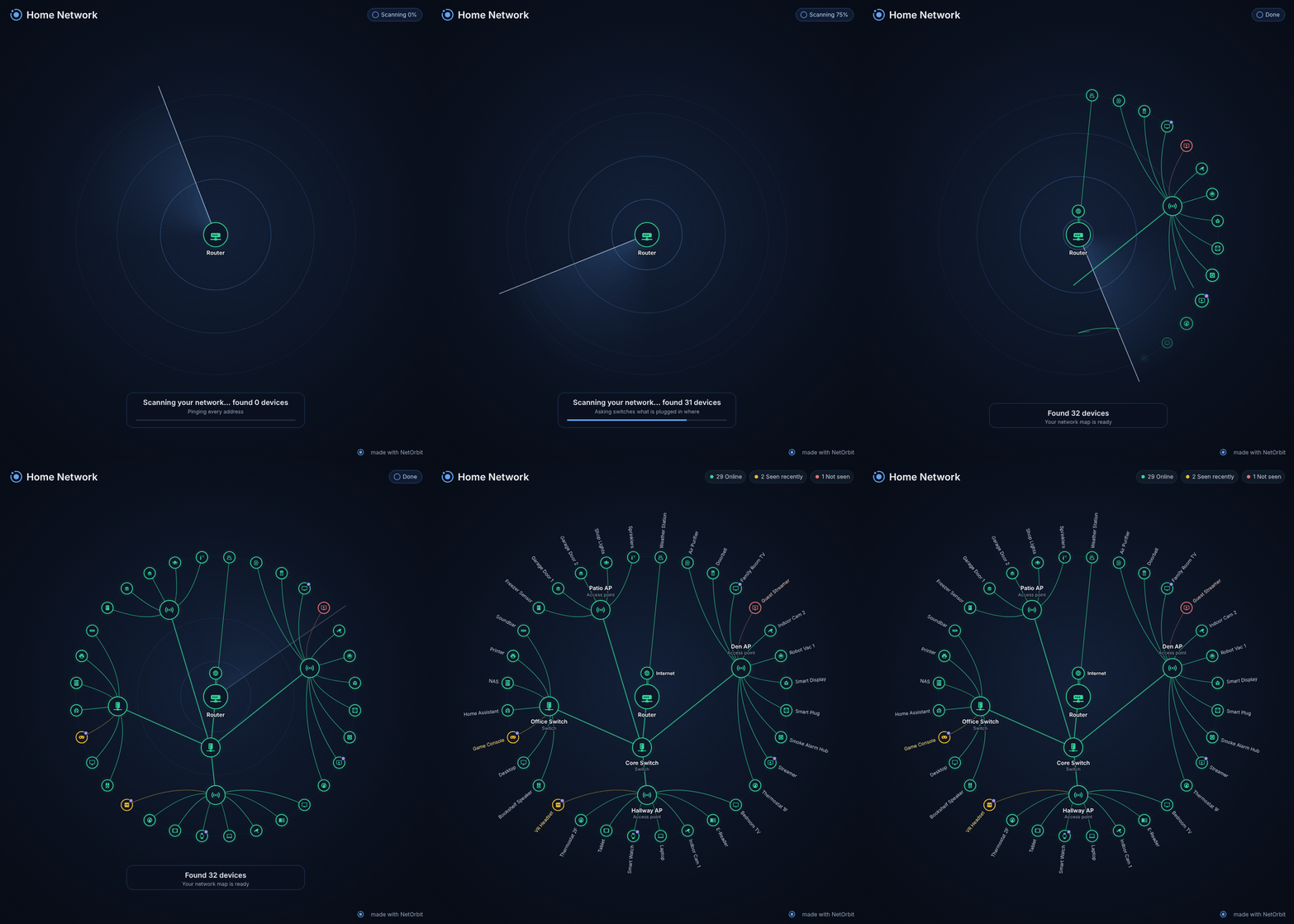
- Watch the first scan happen. Right after you add NetOrbit, the card shows a radar sweeping around your router with a live count of what it has found ("Scanning your network... found 12 devices") and…
- Share your map. The Share button makes a picture of your map to download or copy, or a short video of the scan animation. Device names are hidden by default, so a TV shows up as "TV 1" and a camera…
- Finds every device. Sweeps your subnet, learns MAC addresses from the ARP table, and names devices from what your setup already knows: Home Assistant's device list, device trackers, Ping sensors…
- Finds your network gear. Spots routers, switches, access points and mesh nodes from who made them, what they call themselves, what they announce on the network, and what other integrations already…
- Works out where each device connects, when your network will say:
- Managed switches with SNMP: NetOrbit reads their MAC address tables and works out which switch port, and so which access point, every device is behind. No port mapping needed.
Information
- Installs
- 87 sharing analytics
- GitHub stars
- 54
- Connection
- Works locally
- Upkeep
- Updated in the last 6 months
- Version
- v0.2.10,
- Category
- AI and voice, AI models
- Kind
- Marketplace integration
- Needs
- Needs the Marketplace (HACS on 2026.10 and older)
- Domain
netorbit- Issues
- Report an issue