Deutscher Wetterdienst (DWD)
On Home Assistant 2026.11 or newer? Open it in the Marketplace
- Installs
- 10.3k sharing analytics
- GitHub stars
- 365
- Connection
- Uses the vendor's cloud
- Upkeep
- Updated in the last 6 months
- Version
- 5.3.0,
- Category
- Weather and alerts, Forecasts
- Kind
- Marketplace integration
- Brand
- DWD
- Needs
- Needs the Marketplace (HACS on 2026.10 and older)
- Domain
dwd_weather- Issues
- Report an issue
Independent directory, made by the developer of Vulpo. Not affiliated with Home Assistant or the Open Home Foundation.
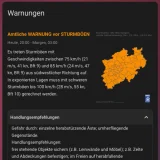
Screenshots From the README of FL550/dwd_weather.
About
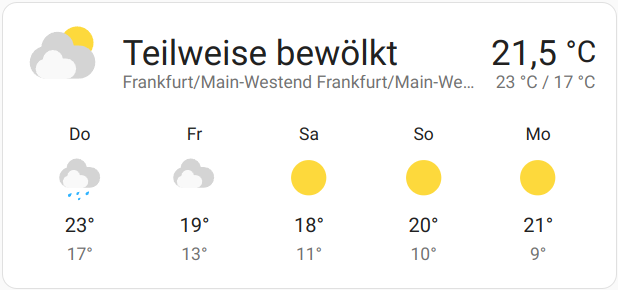
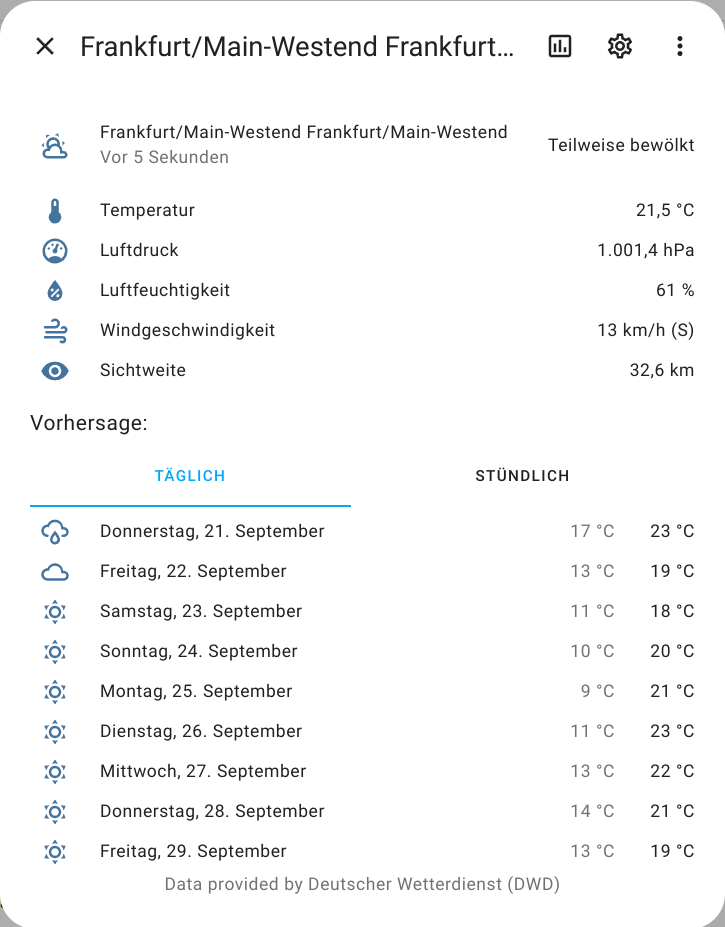
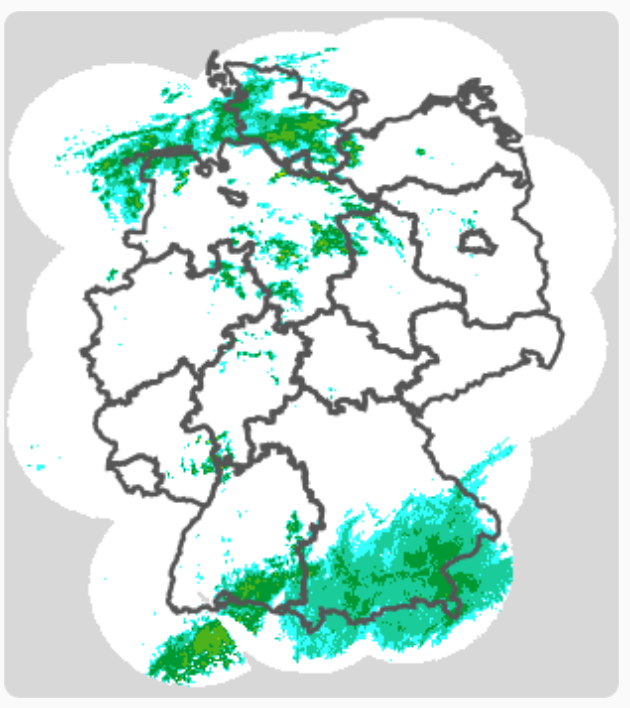
Deutscher Wetterdienst (DWD) adds weather data from the DWD cloud service to Home Assistant. It provides weather, sensor and camera entities, with daily and hourly forecasts that work with the standard weather card. Hourly sensors cover values such as dewpoint, wind gusts, precipitation probability, cloud coverage and visibility, and they are disabled by default. A precipitation radar loop is available as a camera, with options for past radar, nowcast and weather model forecast images. Optional downloads include apparent temperature, air quality and radar precipitation sensors, and several stations can be added. Setup is done in the UI, and the project is private with no connection to the weather service.
Automatic summary of the README and code of FL550/dwd_weather. Something wrong, or are you the maintainer and want your own text here? Get in touch
Supports
Uses the vendor's cloud Needs an internet connection and an account with the vendor.
From the Marketplace Installed through the Marketplace, formerly HACS.
Actively maintained Its author released or pushed a change in the last six months.
Provides
- Cameras
- Sensors
- Weather
Setting it up
Install it from the Marketplace and restart Home Assistant, then add it under Settings, Devices and services.
Deutscher Wetterdienst
- Which Entity Type would you like to configure?
Station selection
- StationYou can either select a station from the list which is ordered by distance from your home, or you can search directly within the box and select a matching one.
- Use custom location from the chartIf you want to select the nearest station to a specific location, toggle this button and drag the marker on the chart below.
Data source configuration
- Data source for current weatherThis only affects the sensor value for the current weather. The forecast is unaffected.
Station configuration
- Station nameThis is the displayed name of the station.
- Wind direction value typeThis affects the sensor value for the wind direction.
- Interpolate valuesAs the values are only provided on an hourly basis, there might be jumps in the displayed values. With this option, the data will be smoothed.
- Force hourly data update (see warning below)Normally the weather is updated every 6 hours. DWD provides an hourly data update as well with some information missing (precipitation probability, precipitiation duration, evaporation), this will however increase data usage significantly as the sensor values are bundled in the hourly update (~37MB vs. ~0.17MB of download per update). Keep in mind, that this obviously also slows down the update of new values.
- Enable apparent temperature valuesDownloads apparent temperature values in addition to the standard weather data.
- Enable air quality valuesDownloads air quality values in addition to the standard weather data.
- Enable radar precipitation sensorsDownloads short-term radar precipitation values and enables dedicated precipitation sensors.
- Use custom location for radar precipitationBy default the radar precipitation is fetched for the coordinates of the selected weather station. Enable this to use a custom location instead and configure it on the next step.
- Radar precipitation locationDrag the marker to the location for which radar precipitation should be fetched. Pre-filled with your home location.
- Limit available forecast steps in sensor attributesThis can be useful if you only use a limited amount of forecast steps and want to increase the clarity of the sensor attributes.
- Activate additional forecast attributesThis will add additional forecast attributes like fog probability, evaporation and sun duration, etc. to the weather object.
- Use higher display precision for daily temperaturesThis will increase the display precision of the daily maximum and minimum temperature values to a decimal place.
Radar location configuration
- Use custom location for radar precipitationBy default the radar precipitation is fetched for the coordinates of the selected weather station. Enable this to use a custom location instead.
- Radar precipitation locationDrag the marker to the location for which radar precipitation should be fetched. Pre-filled with your home location.
Chart location
- Which chart window do you like to use?
Chart configuration
- Which data would you like to see?
- What should be displayed in the background?
- Should the middle of the map be marked?
- Should the map contain a home marker?
- Should the map be displayed in dark mode?
Precipitation loop
- Should the time of the image be visible on the image?
- Font size of the timestampDefine the font size of the timestamp overlay (default is 28).
- Should the timeline slider be visible?Enable or disable the visual timeline progress bar overlay.
- Should the camera state reflect the currently shown image type (Radar/Nowcast/Model)?When enabled, the camera state updates every time the displayed image type changes, which causes frequent state-changed log entries.
- How many minutes of past radar would you like to see?Select the time span in minutes. A new radar image is available every 5 minutes, so 30 minutes will show 6 images in the loop. This value refers to the time before the last available radar image.
- How many minutes of future radar (nowcast) would you like to see?Select the forecast time span in minutes. DWD provides forecast radar images (nowcasting) every 5 minutes for up to 120 minutes (2 hours) into the future.
- How many additional hours of weather model forecast would you like to see?This appends weather model forecast images (ICON-EU, 1-hour resolution) after the 2-hour radar nowcast.
- How quick should the animation play?The value defines, how long every single image is shown before switching to the next one.
- How quick should the weather model forecast play?The value defines, how long every single forecast image from the weather model is shown before switching to the next one.
After setup
- Station nameThis is the displayed name of the station.
- Wind direction value typeThis affects the sensor value for the wind direction.
- Interpolate valuesAs the values are only provided on an hourly basis, there might be jumps in the displayed values. With this option, the data will be smoothed.
- Force hourly data update (see warning below)Normally the weather is updated every 6 hours. DWD provides an hourly data update as well, this will however increase data usage significantly as the sensor values are bundled in the hourly update (~37MB vs. ~0.17MB of download per update). Keep in mind, that this obviously also slows down the update of new values.
- Enable apparent temperature valuesDownloads apparent temperature values in addition to the standard weather data.
- Enable air quality valuesDownloads air quality values in addition to the standard weather data.
- Enable radar precipitation sensorsDownloads short-term radar precipitation values and enables dedicated precipitation sensors.
- Use custom location for radar precipitationBy default the radar precipitation is fetched for the coordinates of the selected weather station. Enable this to use a custom location instead.
- Radar precipitation locationDrag the marker to the location for which radar precipitation should be fetched.
- Limit available forecast steps in sensor attributesThis can be useful if you only use a limited amount of forecast steps and want to increase the clarity of the sensor attributes.
- Unavailable settingAt the moment it is not possible to configure a chart. Please remove this element and re-add it with your desired settings.
- What should be displayed in the background?
- Should the middle of the map be marked?
- Should a home-marker be displayed on the map?
- Should the time of the image be visible on the image?
- Use custom location for radar precipitationBy default the radar precipitation is fetched for the coordinates of the selected weather station. Enable this to use a custom location instead.
- Radar precipitation locationDrag the marker to the location for which radar precipitation should be fetched. Pre-filled with your home location.
- Which shape should the home marker have?
- How big should the home marker be?
- What color should the home marker have?
Texts from the code of FL550/dwd_weather.
Entities
- SensorsWeather condition, Weather report, Apparent temperature, Dewpoint, Wind speed, Wind direction, Wind gusts, Precipitation, Precipitation probability, Precipitation duration, Cloud coverage, Visibility, and 17 more
From the README
DISCLAIMER: This project is a private open source project and doesn't have any connection with Deutscher Wetterdienst.
Everything can be configured via the Homeassistant UI. See below for images.

Shows in Vulpo
Camera card, Chart card, Lumen sky, Apple Watch.Information
- Installs
- 10.3k sharing analytics
- GitHub stars
- 365
- Connection
- Uses the vendor's cloud
- Upkeep
- Updated in the last 6 months
- Version
- 5.3.0,
- Category
- Weather and alerts, Forecasts
- Kind
- Marketplace integration
- Brand
- DWD
- Needs
- Needs the Marketplace (HACS on 2026.10 and older)
- Domain
dwd_weather- Issues
- Report an issue
More from DWD
 Deutscher Wetterdienst (DWD) Weather Warnings10.7k installs · Weather and alerts, Public warningsOpen
 Deutscher Wetterdienst2k installs · Custom component for Home Assistant that integrates weather data …OpenDWD Precipitation Forecast450 installs · DWD Precipitation Forecast is a Home Assistant component which p…Open