Home Assistant remote access from iPhone: the options compared
The simplest way is Home Assistant Cloud: nothing to change on the router, it works on any internet connection and costs $6.50 or 7.50 euros a month after a 31-day trial. Free options are Tailscale, a Cloudflare Tunnel with your own domain and WireGuard on your router. In the iPhone app, the remote address goes in External URL.
 Joshua Dessol9 min read
How the app reaches home from outside
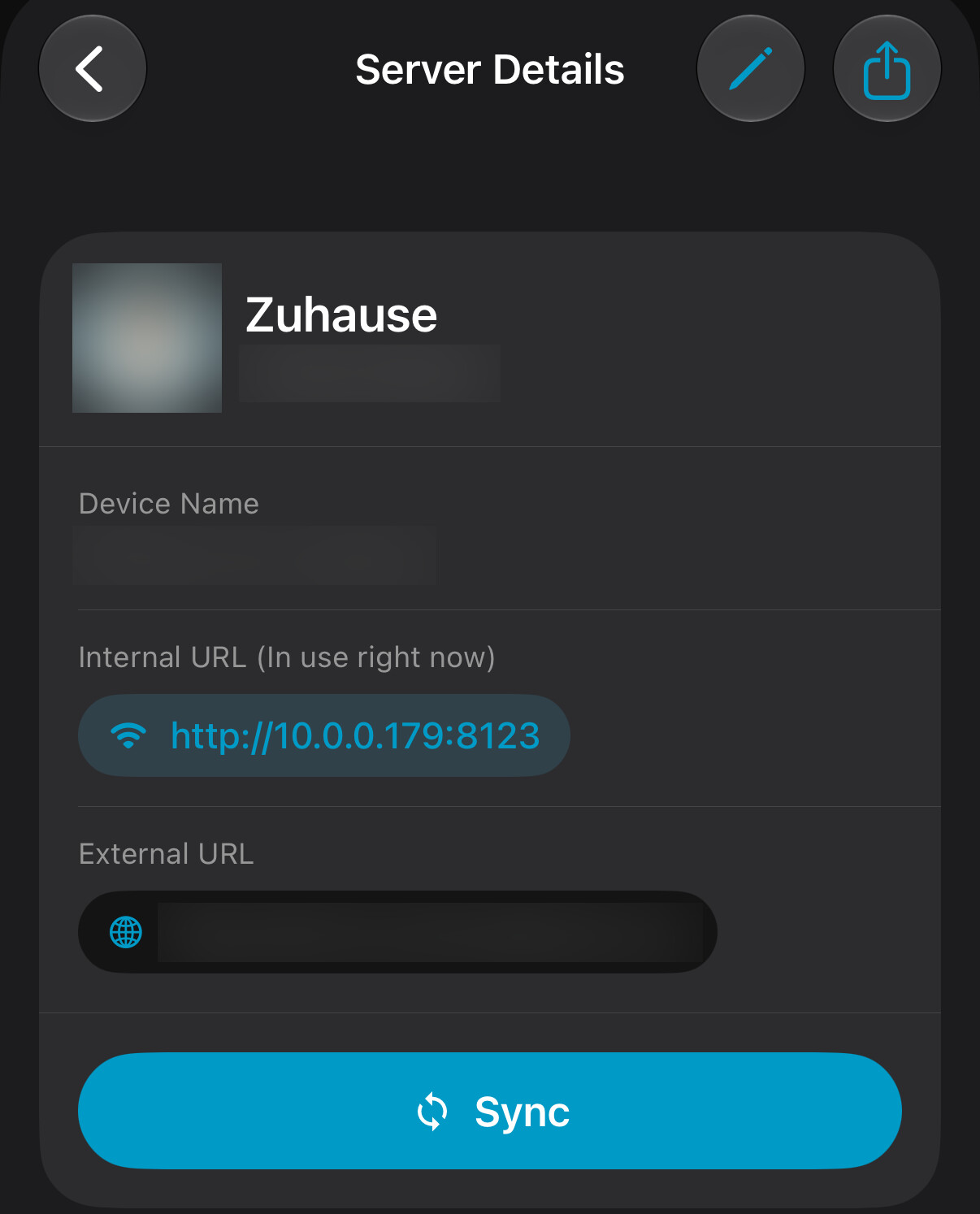
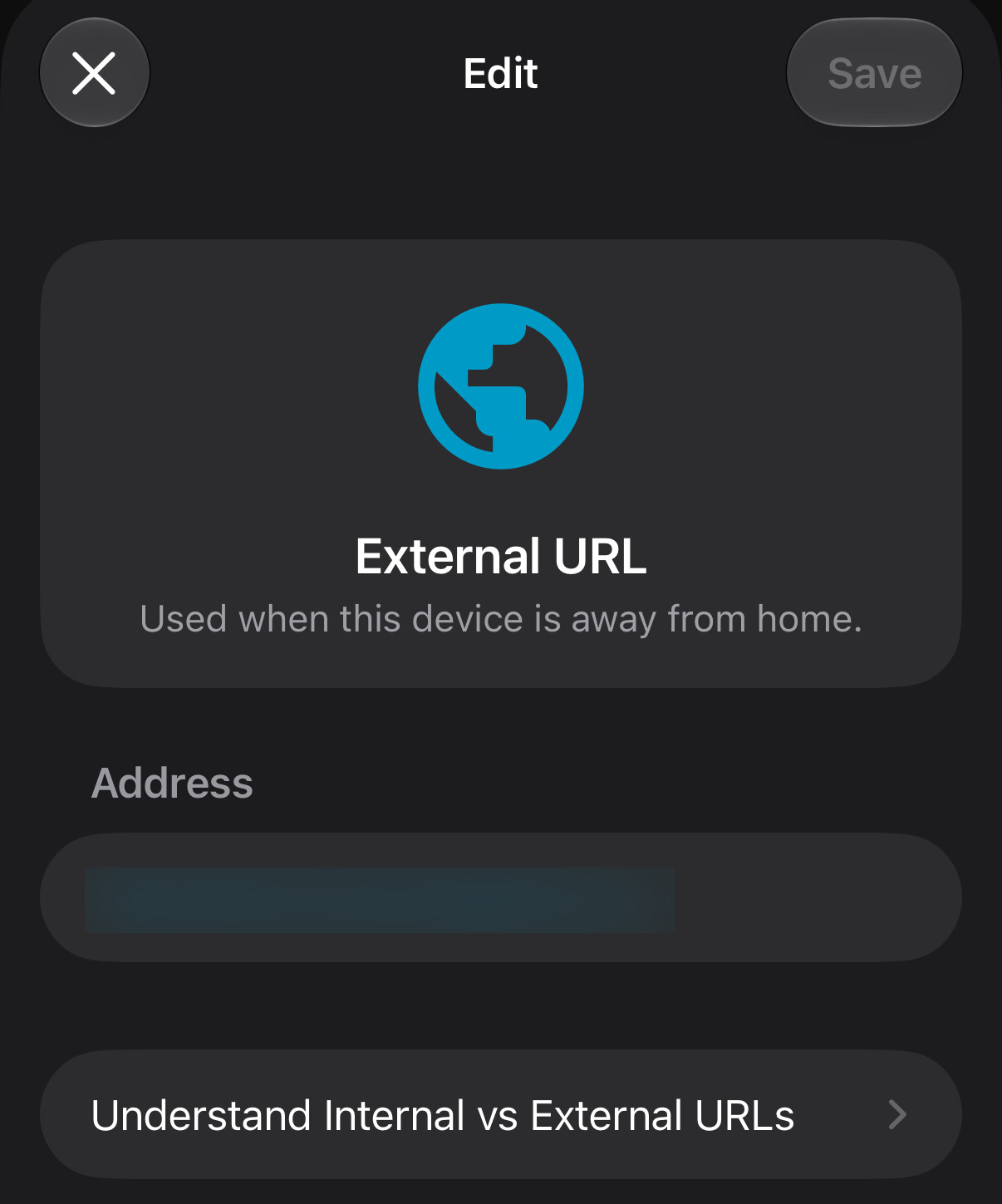
The Home Assistant app uses the Internal URL only on the Wi-Fi networks listed for your server. Everywhere else it uses Home Assistant Cloud if that switch is on, and the External URL otherwise. Remote access therefore always means giving the app a second address, either through Home Assistant Cloud or as External URL, under Settings > Companion app > your server. iOS lets the app recognise home only by the Wi-Fi name, so a VPN never counts as home. The Home Assistant URL fields under Settings > System > Network in Home Assistant are what Home Assistant tells other devices; they do not set up the app.
The options compared
All five work with the official app and with other apps that take an internal and an external address. The ones that connect outward from your home also work when your internet provider gives you no public IPv4 address (CGNAT or DS-Lite, see below).
| Method | Cost | In the app | On the iPhone | Without a public IPv4 address |
|---|---|---|---|---|
| Home Assistant Cloud | $6.50 or 7.50 euros a month, $65 or 75 euros a year, 31-day trial | Home Assistant Cloud switch on | Nothing | Works |
| Tailscale | Free for personal use | External URL https://homeassistant.<tailnet>.ts.net | Tailscale app, connected when away | Works |
| Cloudflare Tunnel | Free, plus a domain of your own | External URL https://ha.example.com | Nothing | Works |
| WireGuard on the router | Free | External URL with the local IP you reach through the tunnel | WireGuard app, connected when away | Only over IPv6 |
| Port forwarding | Free with DuckDNS | External URL https://name.duckdns.org:8123 | Nothing | Only over IPv6 |
Home Assistant Cloud: no setup on the router
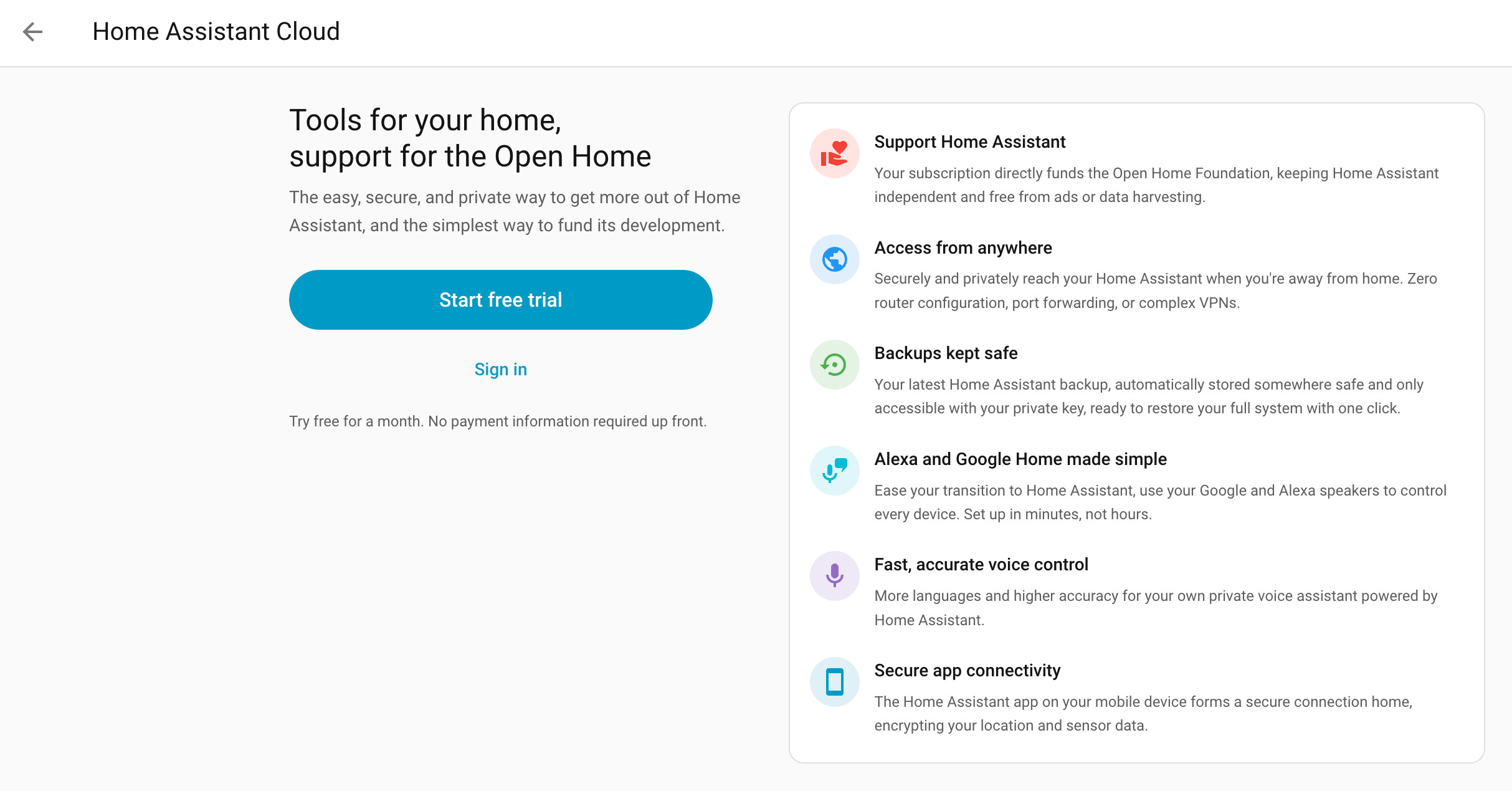
Home Assistant Cloud is a subscription from Nabu Casa, the company that funds Home Assistant's development. Its remote connection runs outward from your home, so no port is opened and it works behind any internet connection. It costs $6.50 a month or $65 a year in the US before tax, and 7.50 or 75 euros in the euro area with tax, after a 31-day trial that needs no card. On December 2, 2026 it becomes Home Assistant Link; Nabu Casa says the subscription stays the same and nothing needs doing.
- In Home Assistant: Sign in under Settings > Home Assistant Cloud, open Remote access and turn on Remote connection.
- In the app: In Server Details, open External URL and turn on Home Assistant Cloud. The switch appears there only once Remote connection is on. No other External URL is needed: while the switch is on, the app does not use one.
- On the iPhone: Nothing else to install. Away from home, location and sensor updates also go through Nabu Casa.
- If it does not connect: Check that the subscription is active and Remote connection is on. A Home Assistant user set to Local access only, under Settings > People, cannot sign in from outside.
Tailscale: free, with nothing open on the router
Tailscale links your devices in a private network of their own. Home Assistant joins it through the Tailscale app from Settings > Apps, the iPhone through the Tailscale app from the App Store. The personal plan is free for up to six users, and both ends connect outward, so it works behind CGNAT too.
- In Home Assistant: Install Tailscale from Settings > Apps and sign in. In the Tailscale admin console, turn off key expiry for the Home Assistant machine, or it drops out after 180 days.
- HTTPS with Serve: In the admin console, turn on MagicDNS and HTTPS. Set the Tailscale app's share_homeassistant option to serve, then in Home Assistant, under Settings > System > Network > HTTP server, turn on Trust X-Forwarded-For and add 127.0.0.1 under Trusted proxies. Home Assistant then answers at https://homeassistant.<tailnet>.ts.net, without a port; the first part is the machine's name in Tailscale.
- In the app: Put that address in External URL. A plain address such as http://100.101.102.103:8123 works there too, and so does your local IP through a subnet router. It has to be the External URL, because the app never treats a VPN as home.
- On the iPhone: The Tailscale app has to be connected whenever you are away. VPN On Demand in its settings connects it on cellular and on every Wi-Fi except your home network. iOS runs one VPN at a time, so an ad blocker or a work VPN that uses the VPN slot switches Tailscale off.
- Serve, not Funnel: Funnel publishes Home Assistant on the open internet. Serve keeps it inside your own Tailscale network.
Cloudflare Tunnel: free with a domain of your own
The Cloudflared app opens a tunnel from Home Assistant out to Cloudflare, which publishes it under a name on your domain. The tunnel is free; the domain has to use Cloudflare's DNS. Cloudflare decrypts the traffic on its servers, and the login page is on the open internet unless something sits in front of it.
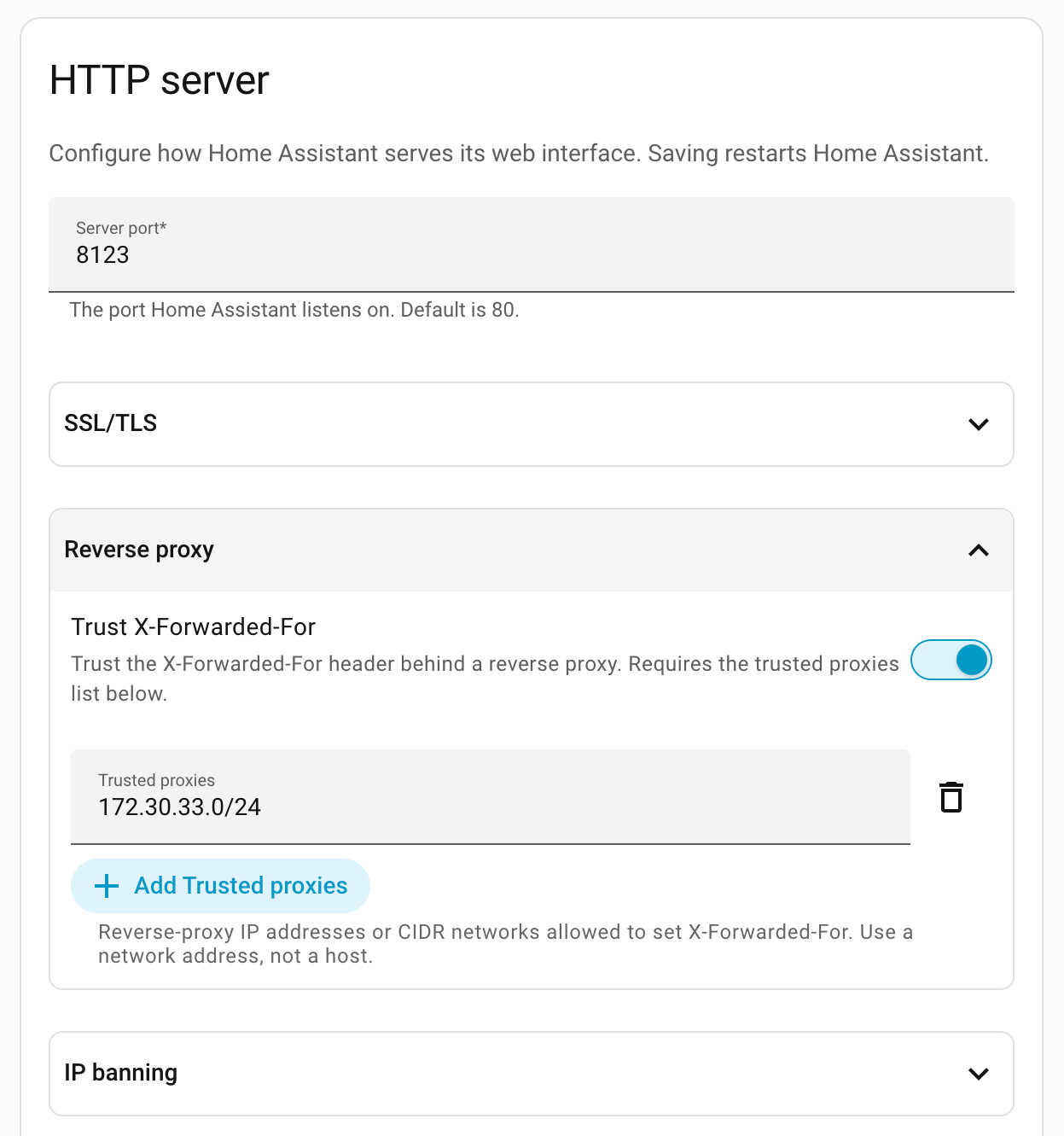
- In Home Assistant: Install the community Cloudflared app, set external_hostname to the name you want, such as ha.example.com, and authorize the tunnel through the link in its log. Then, under Settings > System > Network > HTTP server, turn on Trust X-Forwarded-For and add 172.30.33.0/24 under Trusted proxies.
- In the app: Put https://ha.example.com in External URL, without a port.
- Error 400: The trusted proxy is missing. The Home Assistant log names the address it saw, in "A request from a reverse proxy was received from" or "Received X-Forwarded-For header from an untrusted proxy".
- Location stops updating (503): Cloudflare's Bot Fight Mode, Browser Integrity Check or a firewall rule blocks the app's requests, which the app's event log shows as status code 503. Add a custom rule that skips the other security rules for your Home Assistant hostname.
- Cloudflare Access: The app cannot reliably complete an Access login, and widgets and location updates cannot carry its cookie. Leave the Home Assistant hostname out of Access, or protect it with a client certificate, which the app imports under Client Certificate in Server Details.
WireGuard on your router, such as a FRITZ!Box
Many routers run a WireGuard VPN server themselves, the FRITZ!Box since FRITZ!OS 7.50. The iPhone connects home with the free WireGuard app, and only the router's VPN port is open, not Home Assistant. The router has to be reachable from the internet: with a public IPv4 address, or with DS-Lite only over IPv6, from networks that have IPv6 too.
- On a FRITZ!Box: Under Internet > Permit Access > VPN (WireGuard), add a connection for a single device and scan its QR code with the WireGuard app. Keep the QR code as safe as a password.
- In the app: Put the address you reach through the tunnel in External URL, usually the local IP, such as http://192.168.178.20:8123. Names on homeassistant.local do not resolve through the tunnel.
- On the iPhone: In the WireGuard app, turn on On-Demand for cellular and for Wi-Fi except your home network. The FRITZ!Box profile sends all traffic through home; narrowing Allowed IPs to your home network keeps the rest direct.
- Same range elsewhere: Every FRITZ!Box uses 192.168.178.x by default, so on another FRITZ!Box network the tunnel cannot reach an address that also exists there. Give your home network another range if this happens.
Port forwarding: free, but exposed
Forwarding a router port to Home Assistant, with a free DuckDNS name and a Let's Encrypt certificate, costs nothing but puts Home Assistant's login on the open internet. Over IPv4 it does not work behind CGNAT or DS-Lite.
- Name and certificate: The official DuckDNS app keeps the name pointing at your home and fetches the certificate. Since Home Assistant 2026.8, enter the certificate files under Settings > System > Network > HTTP server, in the SSL/TLS section.
- Router: Forward an outside port to Home Assistant's port and use only https. A reverse proxy such as NGINX on port 443 is the alternative; it needs the trusted proxy setting described above.
- In the app: Use https://name.duckdns.org:8123, or your proxy's name, as External URL. With the certificate on Home Assistant itself, plain http stops working at home too, so the app needs the public name there as well, which only works if the router loops it back.
- Lock it down: Use a long password and two-factor authentication, turn on IP banning in the HTTP server settings and keep Home Assistant updated.
Do you have a public IPv4 address?
Compare the IPv4 address your router shows for its internet connection with the one a what-is-my-IP site shows. If they differ, or the router's address is a private one or lies between 100.64 and 100.127, you share an address with other customers and nothing from outside reaches you over IPv4. A FRITZ!Box names a DS-Lite tunnel under Internet > Online Monitor. Home Assistant Cloud, Tailscale and Cloudflare Tunnel work anyway, because they connect outward. Port forwarding and a router VPN then need IPv6, or a public IPv4 address from your provider, often for a fee.
Notifications arrive either way
Notifications reach the iPhone through Home Assistant's free push service and Apple, whichever remote access you use, as long as Home Assistant itself is online; the service allows 500 a day per device. What needs a way back home are action buttons and images attached by address. With Home Assistant Cloud they go through Nabu Casa; otherwise they use the External URL, so with a VPN that is off, an action button fails.
Where Vulpo fits
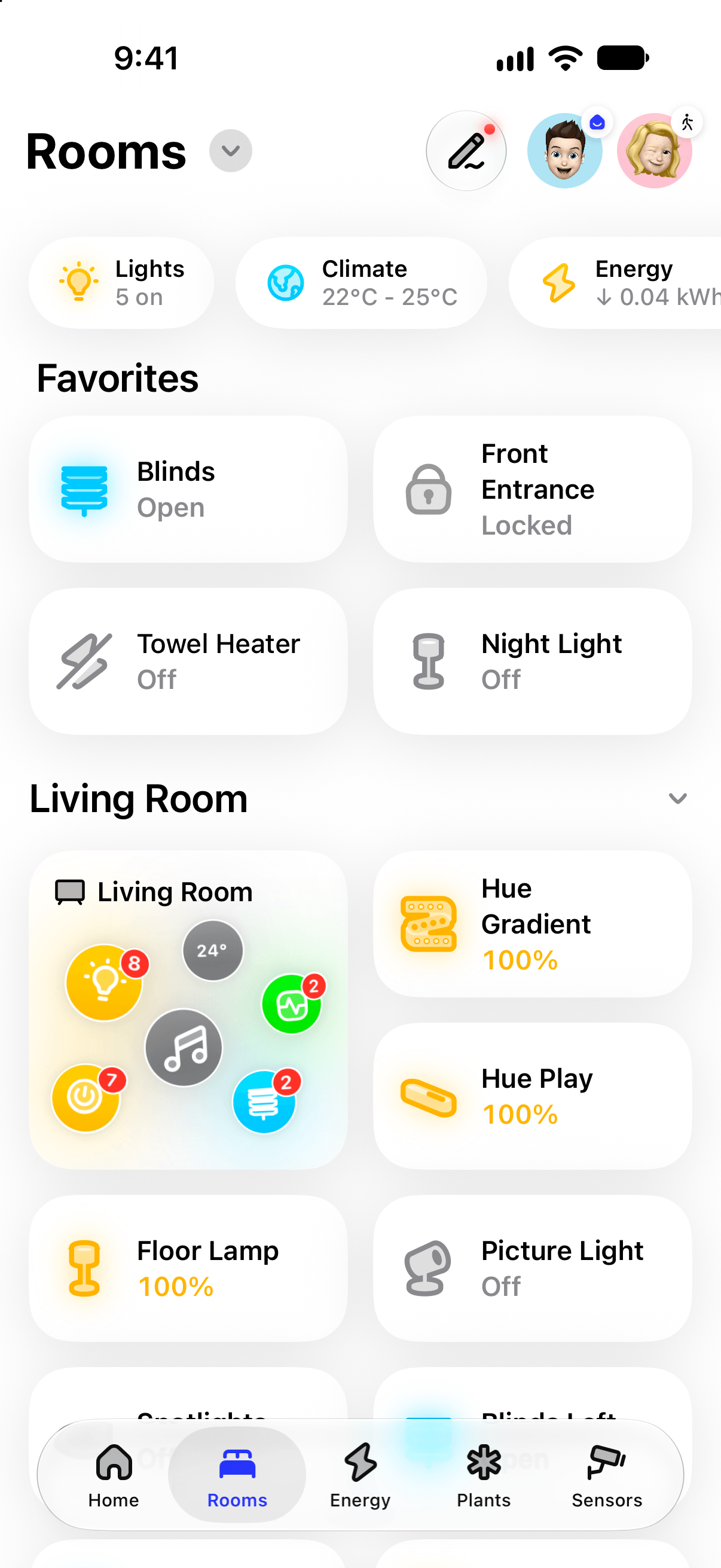
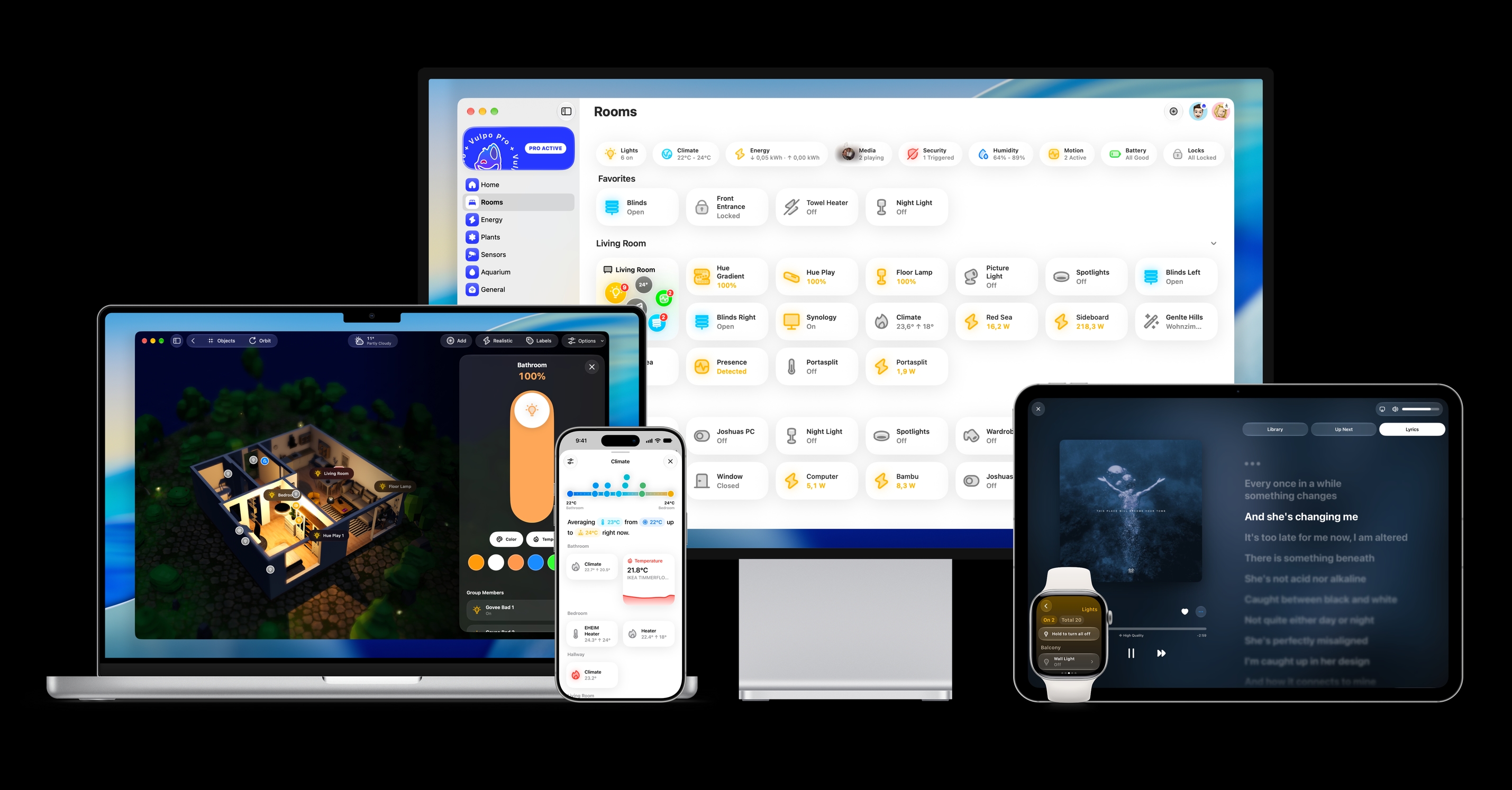
Vulpo is a native Home Assistant app for iPhone, iPad, Mac and Apple Watch. It takes the same two addresses, an Internal URL for your Wi-Fi networks and an External URL for everywhere else, so every method above works with it. With Home Assistant Cloud it can pick up the remote address on its own, and when one address stops answering it tries the other. It connects straight to your Home Assistant, with no servers of its own in between. It needs iOS 26 or newer. Vulpo is made by the publisher of this site.
Questions
Can I reach Home Assistant from outside for free?
Yes: with Tailscale's personal plan, a Cloudflare Tunnel on a domain you own, WireGuard on your router or port forwarding. Home Assistant Cloud costs $6.50 or 7.50 euros a month and needs no changes on the router.
Do I need to open a port on my router?
Not for Home Assistant Cloud, Tailscale or a Cloudflare Tunnel: they connect outward from your home. A router VPN opens only its own VPN port; port forwarding opens one to Home Assistant itself.
Why does the app not use my local address through the VPN?
iOS lets the app recognise home only by the Wi-Fi name, so a VPN never counts as home. Put the address you reach through the VPN in External URL, and list your home Wi-Fi names for the Internal URL.
What changes when Home Assistant Cloud becomes Home Assistant Link?
The name, on December 2, 2026. Nabu Casa says the subscription stays the same and nothing needs doing; no price change has been announced.
Do notifications need remote access?
No. They arrive through Home Assistant's push service wherever you are. Action buttons and attached images need a way back to Home Assistant.
Sources
- Home Assistant: Remote access
- Nabu Casa: Home Assistant Cloud becomes Home Assistant Link
- Nabu Casa: Pricing
- Home Assistant Companion docs: Connection security level
- Home Assistant Companion docs: Notification details
- Home Assistant: HTTP integration
- Tailscale: Remotely access Home Assistant
- Tailscale: VPN On Demand on iOS
- Tailscale app for Home Assistant (GitHub)
- Cloudflared app for Home Assistant (GitHub)
- Cloudflare: Tunnel
- FRITZ!Box: Setting up a WireGuard VPN on a smartphone
Facts about other apps come from their App Store listings and documentation as of the date above. Home Assistant is a trademark of the Open Home Foundation; Vulpo is not affiliated with it. Corrections: josh@vulpo.app.
More guides
- , 11 min read
Home Assistant app not connecting
Why the Home Assistant app on iPhone or iPad won't connect, at home or away, and how to fix it: Local Network, Wi-Fi names, logins and remote access. - , 6 min read
HACS becomes the Marketplace
What changes when HACS becomes Home Assistant's built-in Marketplace in 2026.11: what moves over, what to check, when GitHub is needed, and older versions. - , 5 min read
Best Home Assistant apps for iPhone
The official Home Assistant iOS app and 14 maintained alternatives for iPhone and iPad, by need: native dashboards, Apple Watch, a wall panel or Apple Home.