Home Assistant on an iPad wall panel: kiosk mode, apps and setup
Use the official Home Assistant app's Kiosk Mode: it opens one dashboard full screen, keeps the screen on and shows a clock or a dimmed screensaver that wakes on motion. Turn on Guided Access in Settings > Accessibility so nobody leaves the app, and on newer iPads set the 80% charge limit for a panel that stays plugged in.
 Joshua Dessol7 min read
The official app's Kiosk Mode
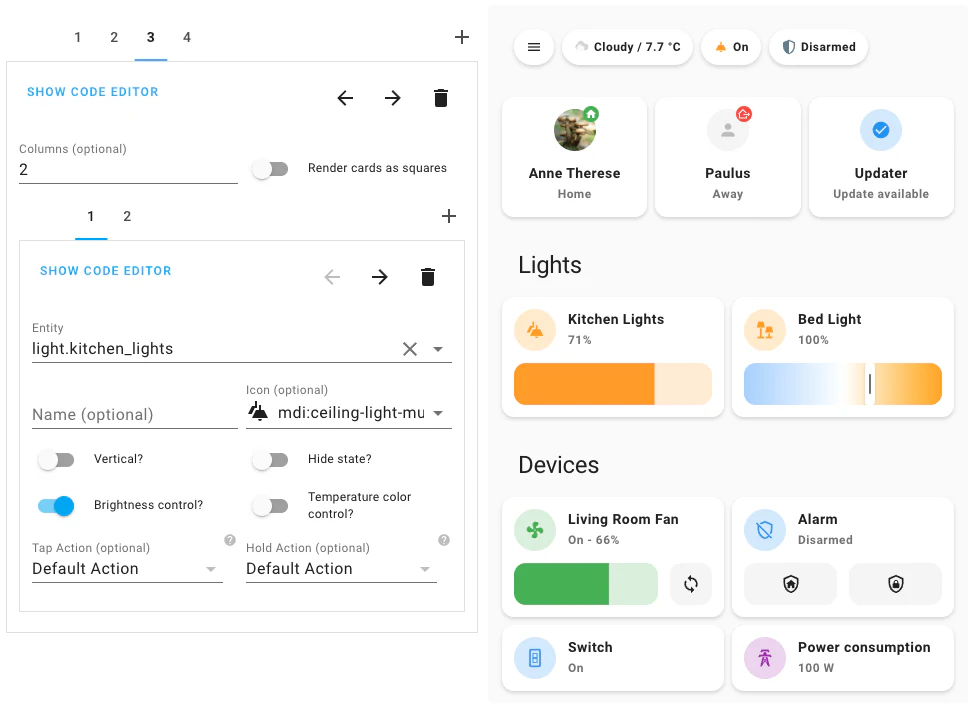
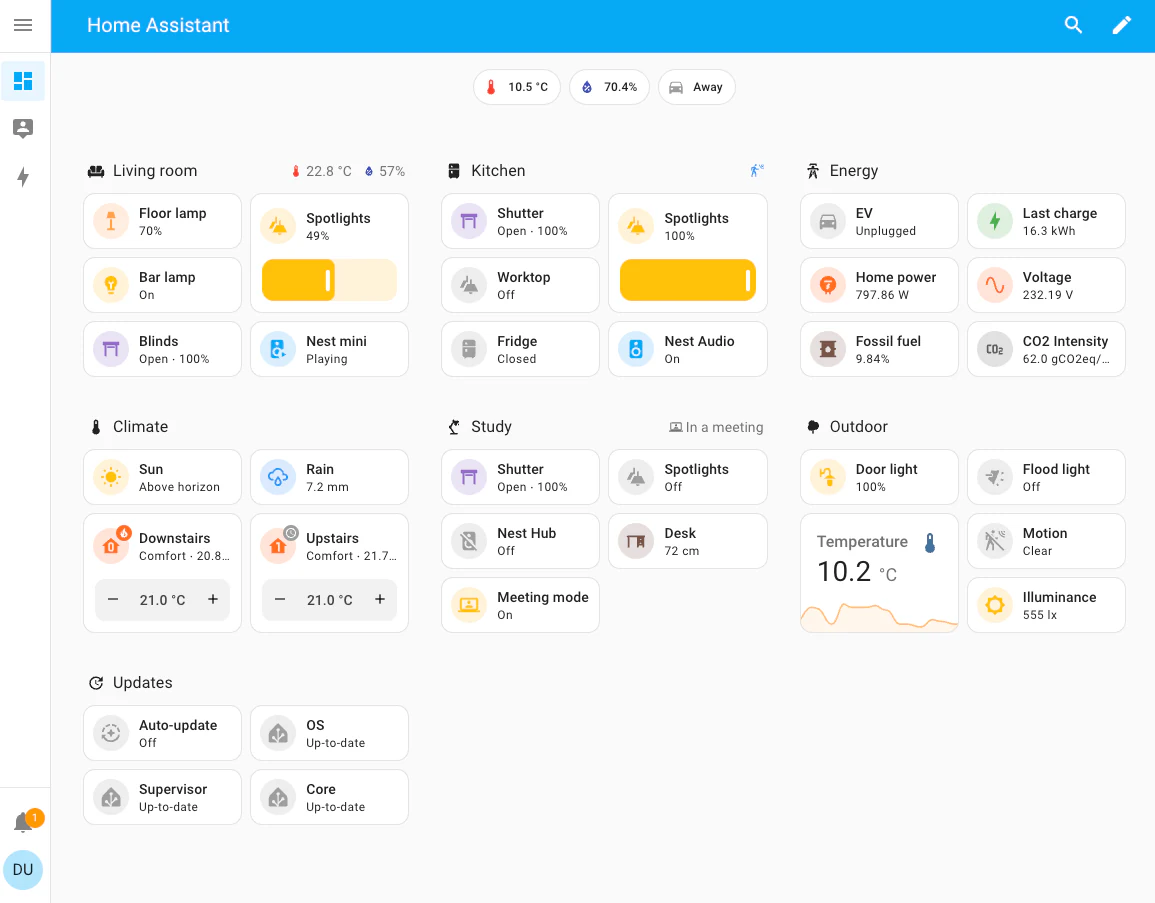
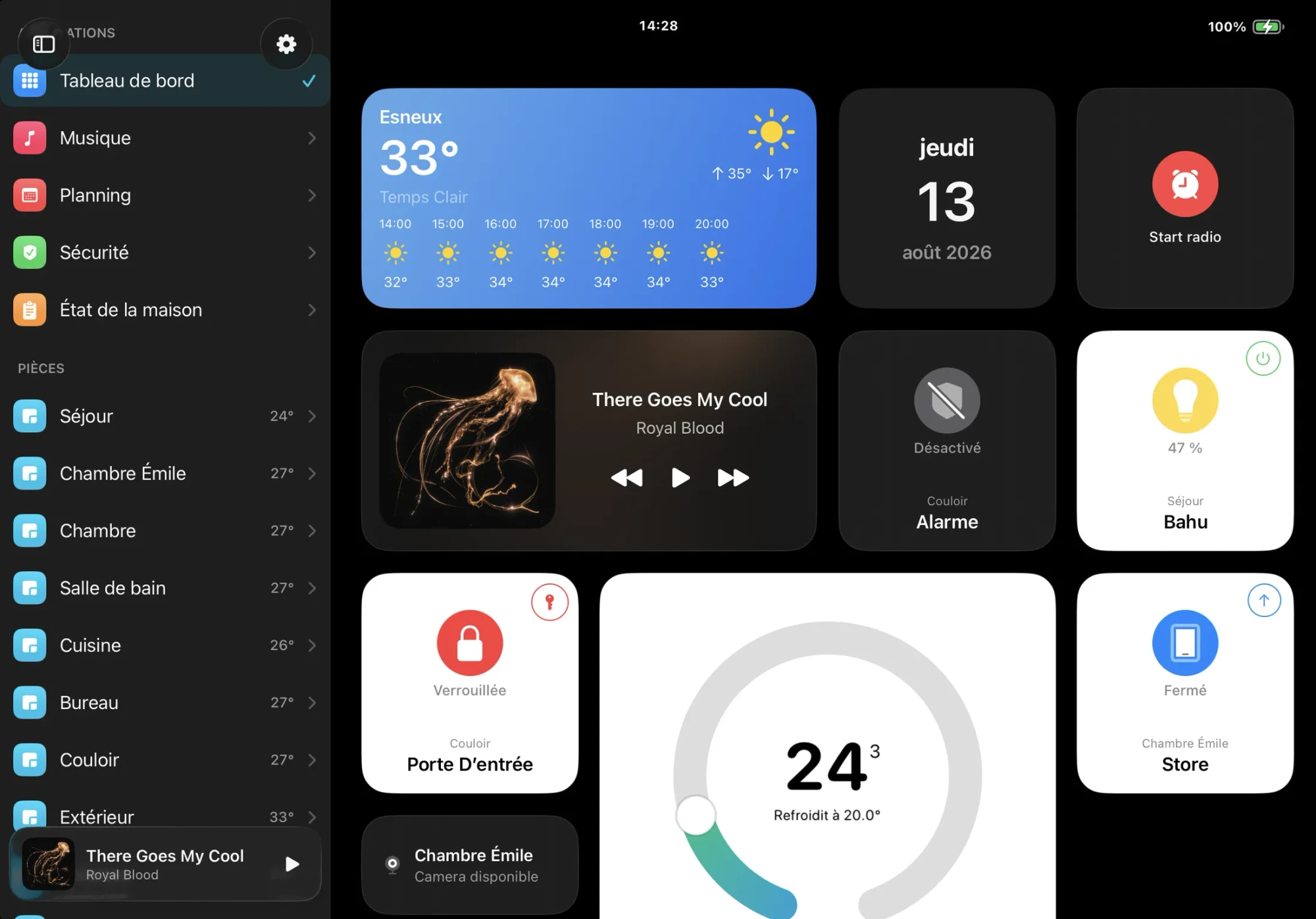
The official Home Assistant app has a Kiosk Mode for wall-mounted iPads, added in app 2026.4 and extended in 2026.7. Turn it on under Settings > Companion app > Kiosk mode, pick the server and the dashboard to show, and the app opens that dashboard full screen. It shows your Home Assistant dashboards as the browser does, so cards from the Marketplace work.
- Screen: Keep screen on stops the iPad from locking; with it off, the iPad's own Auto-Lock applies. Hide sidebar and top bar controls removes the sidebar and the edit and search buttons (Home Assistant 2025.2 or newer), and Hide status bar removes the row with the clock and battery, except in Split View or Slide Over.
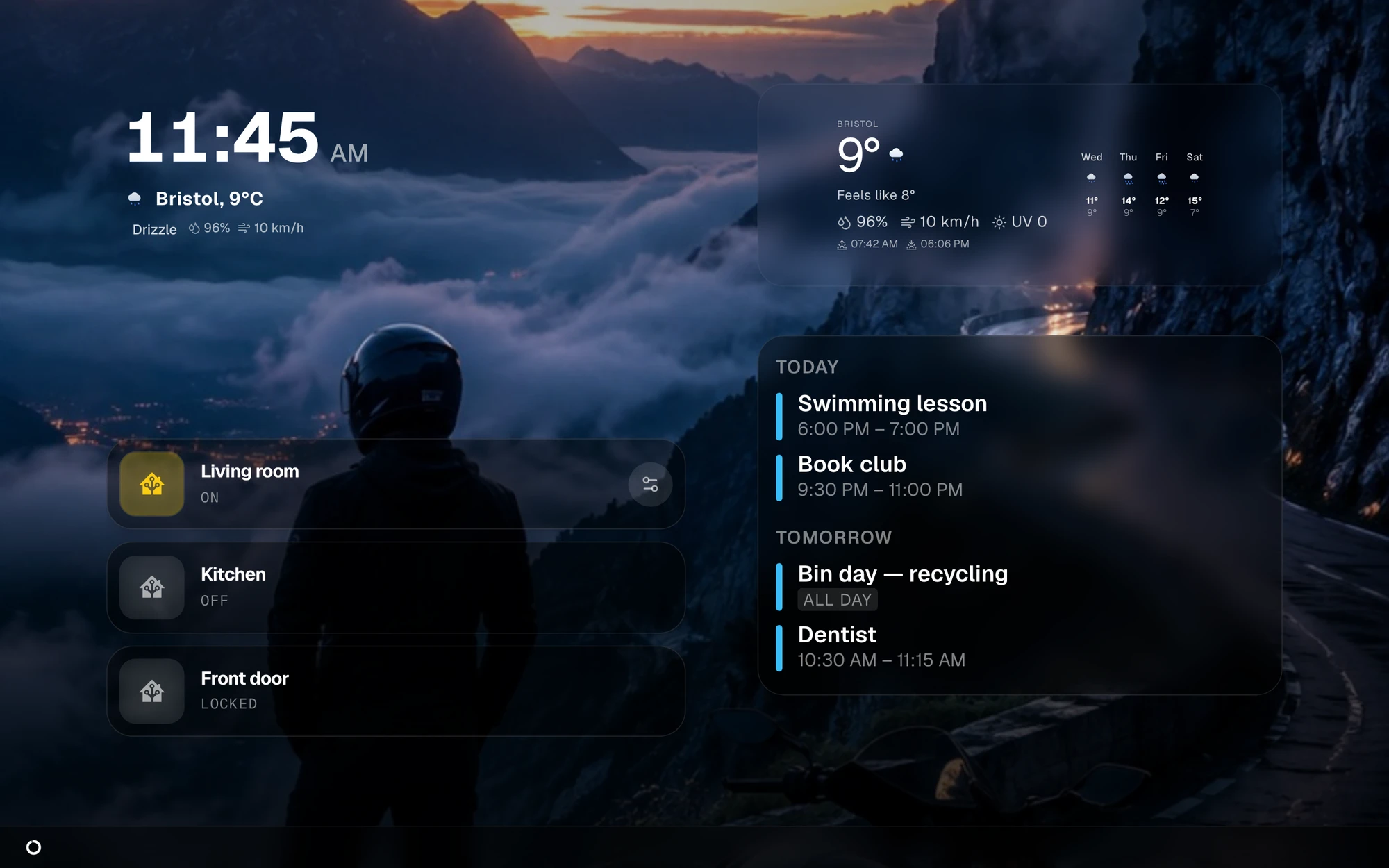
- Screensaver: After 30 seconds to an hour without a touch, it shows a clock, dims the dashboard or turns the screen black. Wake on camera motion uses the front camera to wake it, and iOS shows the green camera dot while Kiosk Mode runs.
- Settings behind a lock: A button in a corner of your choice opens the kiosk settings, and Authentication asks for Face ID, Touch ID or the passcode first.
- From automations: Notifications with commands such as kiosk_show_camera, kiosk_set_brightness or kiosk_reload control the panel, for example to show the front door camera when the doorbell rings. Commands and motion wake work only while the app is open on screen.
action: notify.mobile_app_wall_ipad
data:
  message: kiosk_show_camera
  data:
    entity_id: camera.front_door
Lock the iPad to one app with Guided Access
Kiosk Mode cannot stop someone from leaving the app or turning the iPad off. Guided Access, built into iPadOS, can: it keeps the iPad in one app until you end the session with the passcode, Face ID or Touch ID.
- Turn it on: Settings > Accessibility > Guided Access, then set a passcode under Passcode Settings.
- Start a session: Open the app and triple-click the top button, or the Home button on iPads that have one, then tap Start. Triple-click again to end it.
- Options: Switch off the top button, the volume buttons, motion or the keyboard in the session's Options, and circle the parts of the screen that should ignore touches.
- Display Auto-Lock: Guided Access has its own Display Auto-Lock setting, which decides when the iPad locks during a session. Set it to Never for a panel.
In Safari, with kiosk-mode
Any iPad with a current Safari can show Home Assistant in the browser, and Add to Home Screen in the share menu opens it later without Safari's address bar. To hide Home Assistant's own header and sidebar, install kiosk-mode from the Marketplace (HACS before Home Assistant 2026.11): ?kiosk at the end of a dashboard's address hides both, and ?kiosk&cache keeps it that way on that device. The browser has no screensaver or motion wake, so set Settings > Display & Brightness > Auto-Lock to Never and add Guided Access as above. Fully Kiosk Browser, the usual choice on Android tablets, has no iPad version.
Panel apps from the App Store
Several apps are made for an iPad that stays on. They differ in what they show: the dashboards you already have, a dashboard of their own, or any web page.
- HA Dash: Free and open source. It draws the dashboards you already have as native screens and has a kiosk mode that wakes on touch and can be controlled remotely. It needs iPadOS 15 or newer, and the project keeps a build you install yourself for older iPads such as the iPad 2.
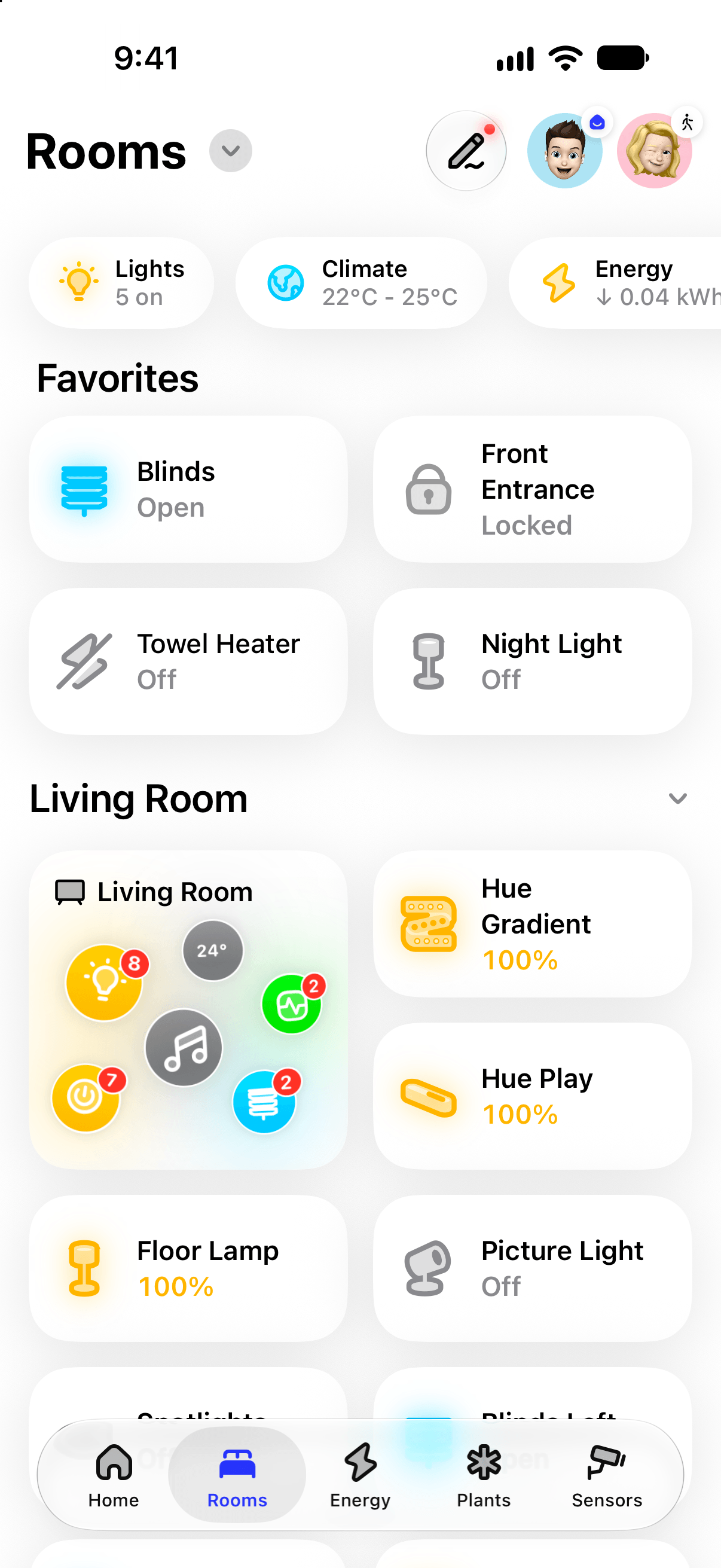
- HomePad: $8.99 once. An always-on control centre for Apple Home or Home Assistant with a dashboard of its own, up to four camera feeds, a doorbell pop-up and a photo frame mode. It needs iPadOS 17.6 or newer.
- Kiosker Pro: $39.99. A kiosk browser that shows your dashboard, or any page, full screen, with its own Home Assistant integration that reports battery, charging and motion and can reload the page. It needs iPadOS 15.6 or newer.
- HA Kiosk: $3.99. Shows any web page full screen, such as a Home Assistant dashboard. It needs iPadOS 15 or newer.
The options compared
Prices are App Store prices in the US, as of November 2026.
| App | Price | Shows | Wall-panel mode |
|---|---|---|---|
 Home Assistant (official) | Free | Your dashboards | YesKiosk Mode |
 HA Dash | Free | Your dashboards, natively | Yeskiosk mode |
 HomePad | $8.99 once | Its own dashboard | Yesalways on |
 Kiosker Pro | $39.99 | Any web page | Yeskiosk browser |
 HA Kiosk | $3.99 | Any web page | Yesfull screen |
 Safari with kiosk-mode | Free | Your dashboards | Partlyno screensaver |
 Vulpo | Free, Pro optional | Its own dashboards | NoKeep screen on in 1.5 |
Which iPads still work
The official app needs iPadOS 16.4 or newer. HA Dash and HA Kiosk need iPadOS 15, Kiosker Pro 15.6, HomePad 17.6 and Vulpo 26. iPadOS 26 runs on the iPad (8th generation), the iPad mini (5th generation) and later models; the iPad (7th generation) stopped at iPadOS 18. For an older iPad, HA Dash's own build and Safari are what is left, and an old version of Safari may not load the current Home Assistant dashboard.
Power and battery
Apple says an iPad can stay connected to its charger overnight, because charging stops when the battery is full, and recommends unplugging it when possible. For a panel that never comes off the wall, newer models have an 80% Limit under Settings > Battery > Battery Health: the iPad (A16), the iPad mini (A17 Pro), the iPad Air (M2) and the iPad Pro (M4) and later. It stops charging at about 80 percent, starts again at 75 and now and then charges to 100 to keep its estimates accurate. On older iPads, a smart plug that Home Assistant switches by the battery level, which the official app reports as a sensor, does a similar job.
Where Vulpo fits
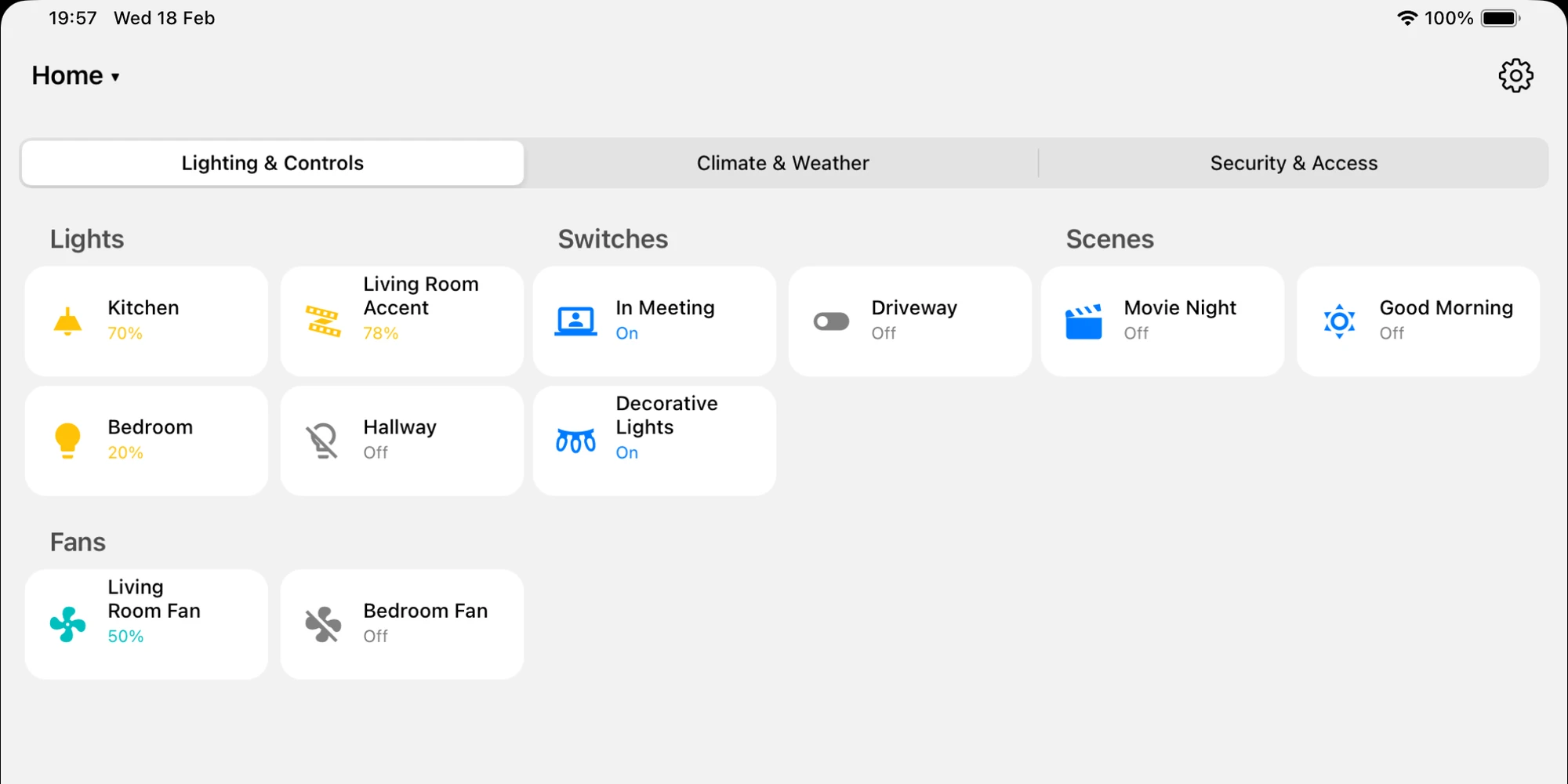
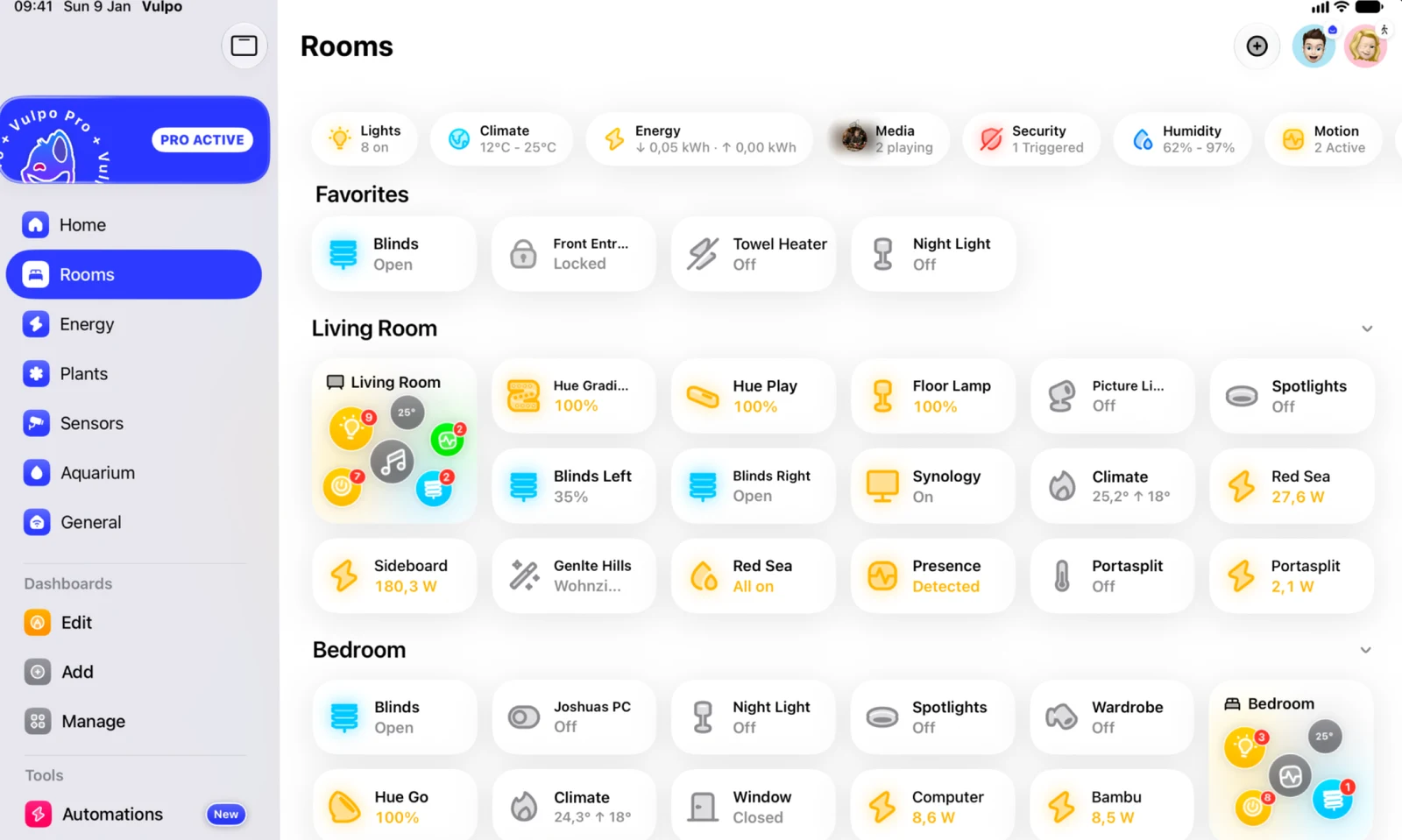
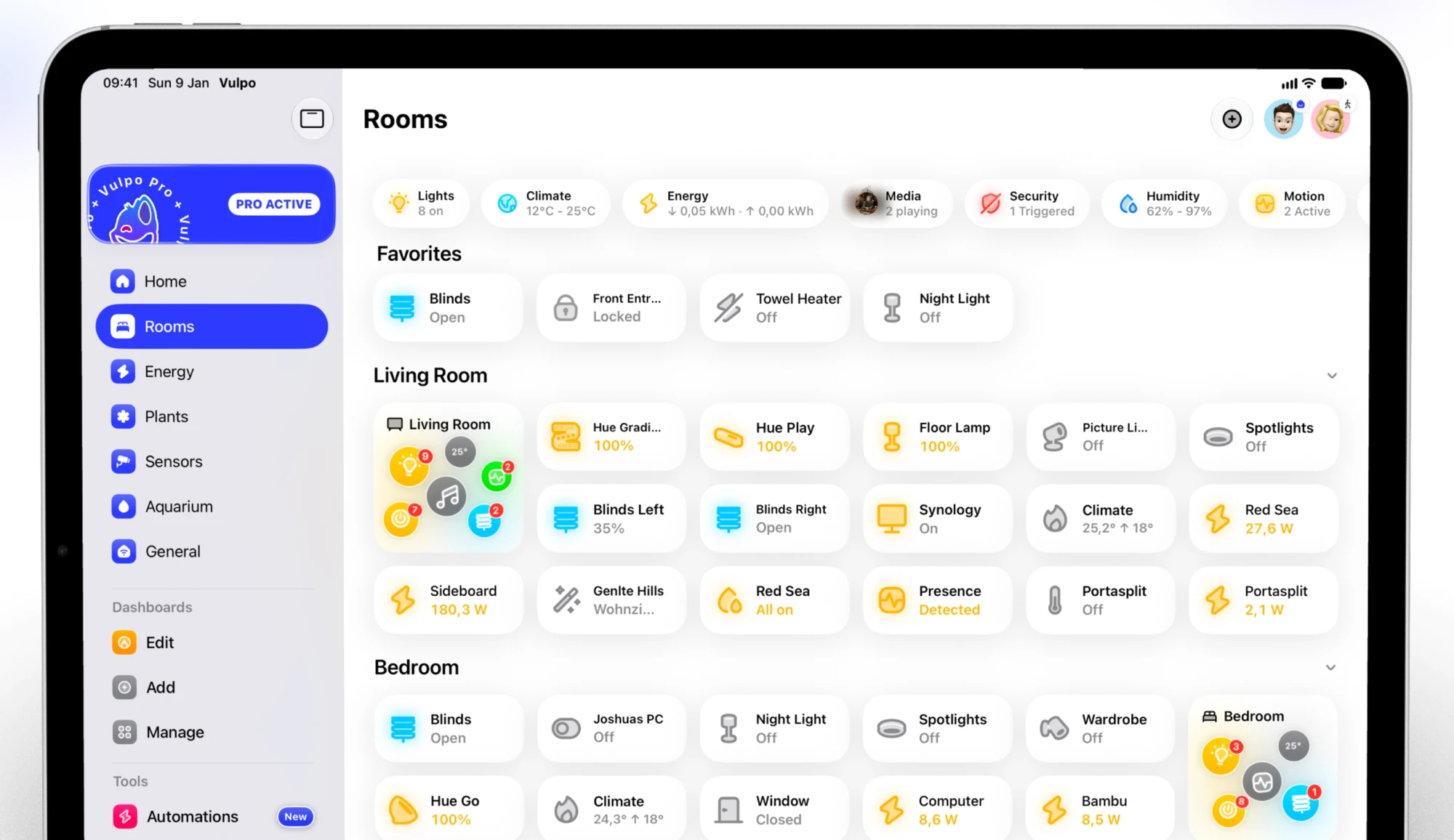
Vulpo is a native Home Assistant app for iPhone, iPad, Mac and Apple Watch. On an iPad it builds its own native dashboards rather than showing your Lovelace ones. It needs iPadOS 26 or newer, so it runs on the iPad (8th generation), the iPad mini (5th generation) and later models, not on most spare iPads from before 2019; for those, the official app or HA Dash is the better choice. It has no kiosk mode yet, so the screen follows Auto-Lock and Guided Access as described above. A Keep screen on setting for dashboards is coming in Vulpo 1.5. For a locked panel with a screensaver and motion wake today, use the official app's Kiosk Mode. Vulpo is made by the publisher of this site.
Questions
How do I keep an iPad's screen on for Home Assistant?
In the official app, turn on Keep screen on under Kiosk mode. In any other app or in Safari, set Settings > Display & Brightness > Auto-Lock to Never, and in Guided Access set Display Auto-Lock to Never.
Is Fully Kiosk Browser available for iPad?
No, Fully Kiosk Browser is made for Android. On an iPad, the official app's Kiosk Mode, kiosk-mode in Safari, or kiosk apps such as Kiosker Pro and HA Kiosk do the same job.
Can I leave the iPad plugged in all the time?
Apple says an iPad can stay connected overnight because charging stops when the battery is full. On iPads with the 80% Limit, turn it on under Settings > Battery > Battery Health; on older ones, a smart plug switched by the battery level keeps the charge from sitting at 100 percent.
Can the wall iPad show a camera when the doorbell rings?
Yes, with the official app's Kiosk Mode: an automation sends the kiosk_show_camera command with the camera's entity, and kiosk_hide_camera closes it again. The app has to be open on screen. HomePad has a doorbell pop-up of its own.
Sources
Sources11
- Kiosk mode in the Home Assistant app
- Home Assistant on the App Store
- Use Guided Access (Apple Support)
- About charging and maintaining your iPad battery (Apple Support)
- kiosk-mode (GitHub)
- HA Dash source (GitHub)
- HomePad on the App Store
- Kiosker Pro on the App Store
- Kiosker integration
- HA Kiosk on the App Store
- iPadOS 26 supported iPads (EveryMac)
Facts about other apps come from their App Store listings and documentation as of the date above. Home Assistant is a trademark of the Open Home Foundation; Vulpo is not affiliated with it. Corrections: josh@vulpo.app.
More guides
- , 12 min read
Best Home Assistant dashboards
Sections, Mushroom, Bubble Card, Magic Frame and native iPhone and iPad apps compared: what each costs, where it runs and who it suits, November 2026. - , 11 min read
Home Assistant app not connecting
Why the Home Assistant app on iPhone or iPad won't connect, at home or away, and how to fix it: Local Network, Wi-Fi names, logins and remote access. - , 9 min read
Home Assistant remote access
Reach Home Assistant from your iPhone away from home: Home Assistant Cloud, Tailscale, Cloudflare Tunnel, WireGuard or a port, with costs and app settings.